FAQs
Here you will find some questions that are asked a little more often than others.
How do I know if my firefighters have created a FireQ profile?
After members are invited to set-up a profile in your FIREQ system, it is possible for you to see where in the set-up process each member is. To check the status of any member set-up, navigate to the “Member Management” tab and click the “Members Add/Edit” button.

FireQ Navigate to Member Management
The member list gives you an at-a-glance look at the set-up status of each member.
There are three types of information displayed here for you:
1.) The status of members who have completed their profile and have successfully logged into the app appear as “profile complete” and “installed app”. You will not see the “installed app” message until the member has logged into the app for the first time. FIREQ-RVS v7.1.6
2.) The status of members who have been invited but have not yet set up a profile appear as “invited”. The invite button remains visible until the profile has been complete.
3.) The status of members who have completed their profile but have not yet logged into the app appear as “profile complete”. The invite button is no longer visible because the invitation has been accepted and the profile is complete.
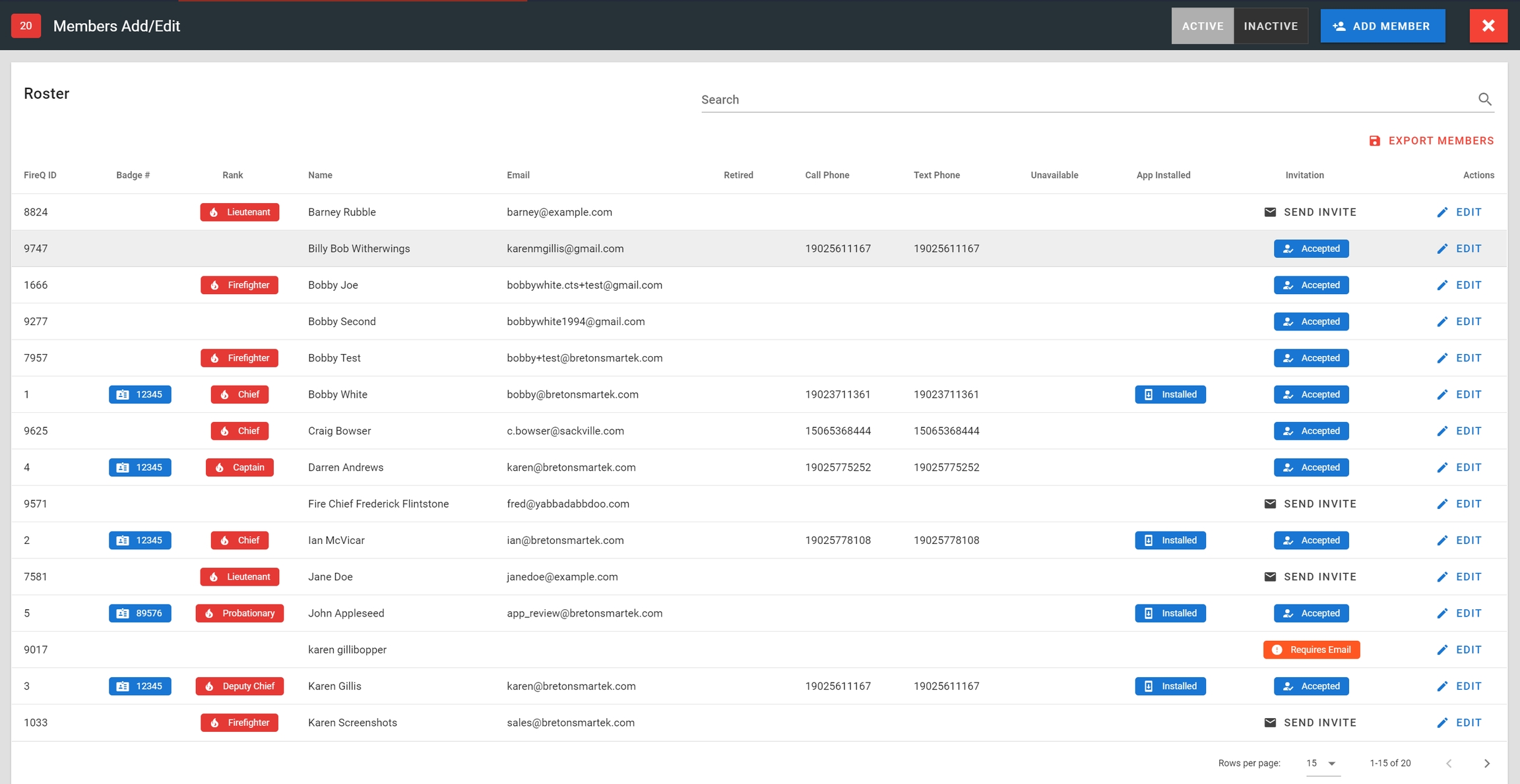
FireQ Member Management List
Is it possible to dispatch specific groups within the Fire Department?
Yes, for fire departments using PageQ it is possible to dispatch specific groups within the fire department without having to dispatch the entire fire department.
To set up a groups for dispatch purposes, navigate to the MEMBER MANAGEMENT tab and click the MESSAGE GROUPS button.

To add a new group, click the ADD button. Give the group a name. If you use PageQ and you want the group to be dispatched, give the group a code. Click the SAVE button.
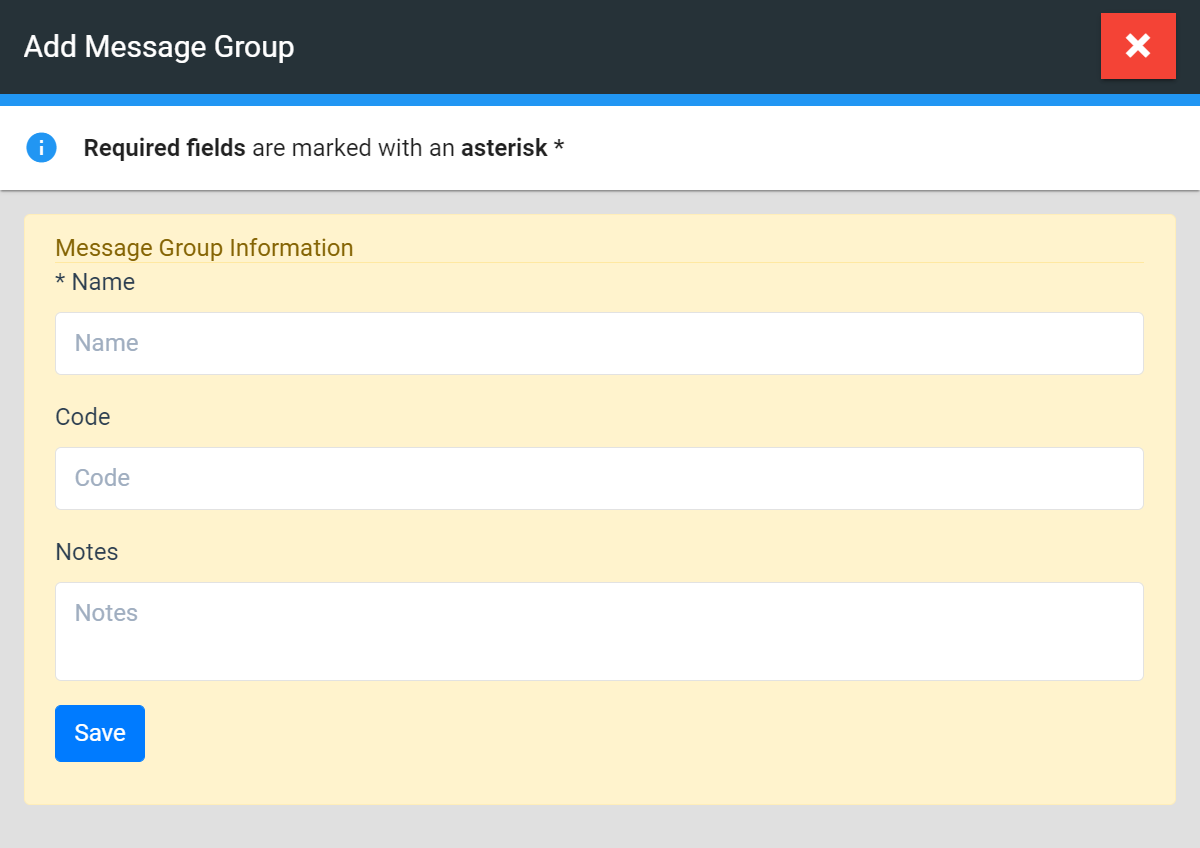
FireQ Add a Group
I have entered assets and hazards to the map in my FireQ software. How do I see them in the FireQ app?
To see the map assets you have entered, you have to change your map view in the FireQ app to LAYERS.
Tap the map button from the toolbar. Tap the SETTINGS button (the little gear wheel). Then tap the LAYERS option.
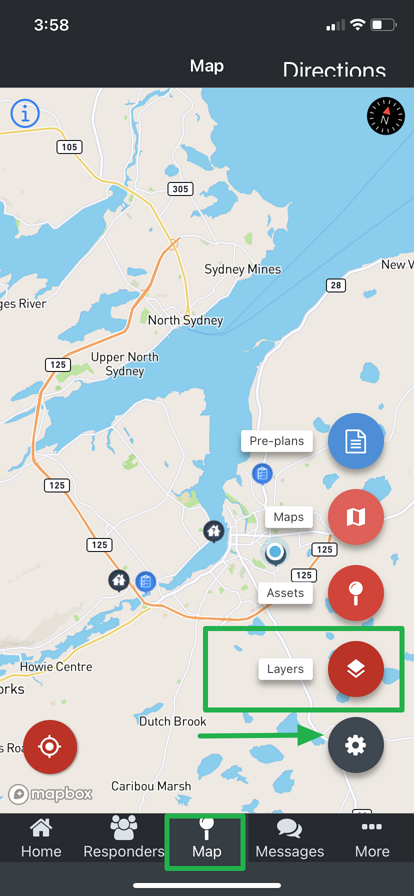
FireQ map - app view
From the LAYERS menu, select the types of assets you want to see. In the screenshot below, “hydrants” are selected. Once you have made your selections, tap “press to close”.
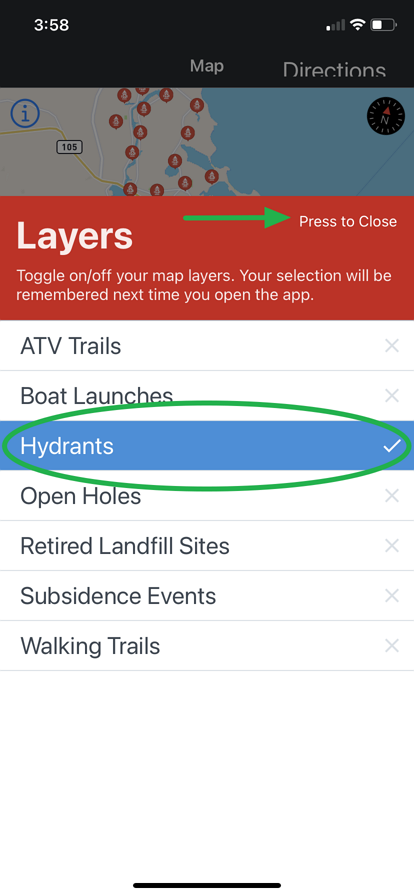
FireQ map - app view layers
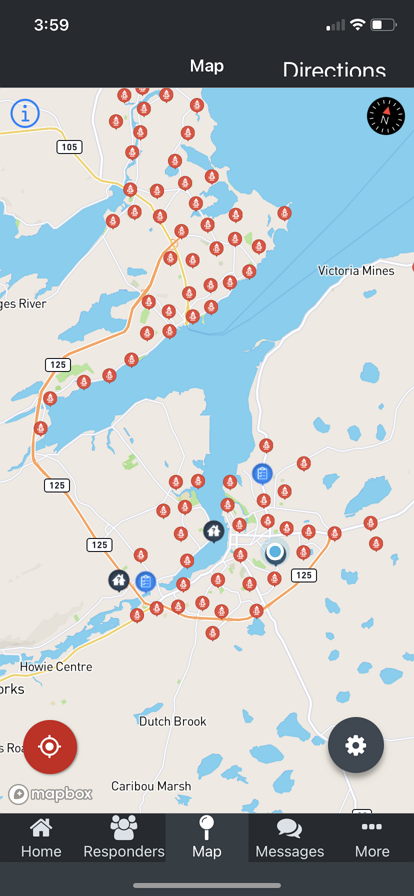
FireQ maps - App view of hydrants