FireQ Dispatch Options
No matter how you are dispatched, FireQ has an option to provide dispatch alerts via text (true-type), phone call, in-app notifications, and email.
Direct from CAD Supported Dispatch
FireQ supports email and API integration for the CAD systems used by dispatch. Firefighters still receive the primary alert via their pagers. Integration with FireQ ensures the CAD message created by operators is configured to send critical information to firefighters via text, voice, app, and email alerts. This information can include incident details and mapping information.
Direct from Non-CAD Supported Dispatch
The FireQ Dispatch Module is available to any dispatch center not using a CAD system with the ability to send a secure email. The module is offered at no charge to any dispatch center serving a fire department that uses FireQ.
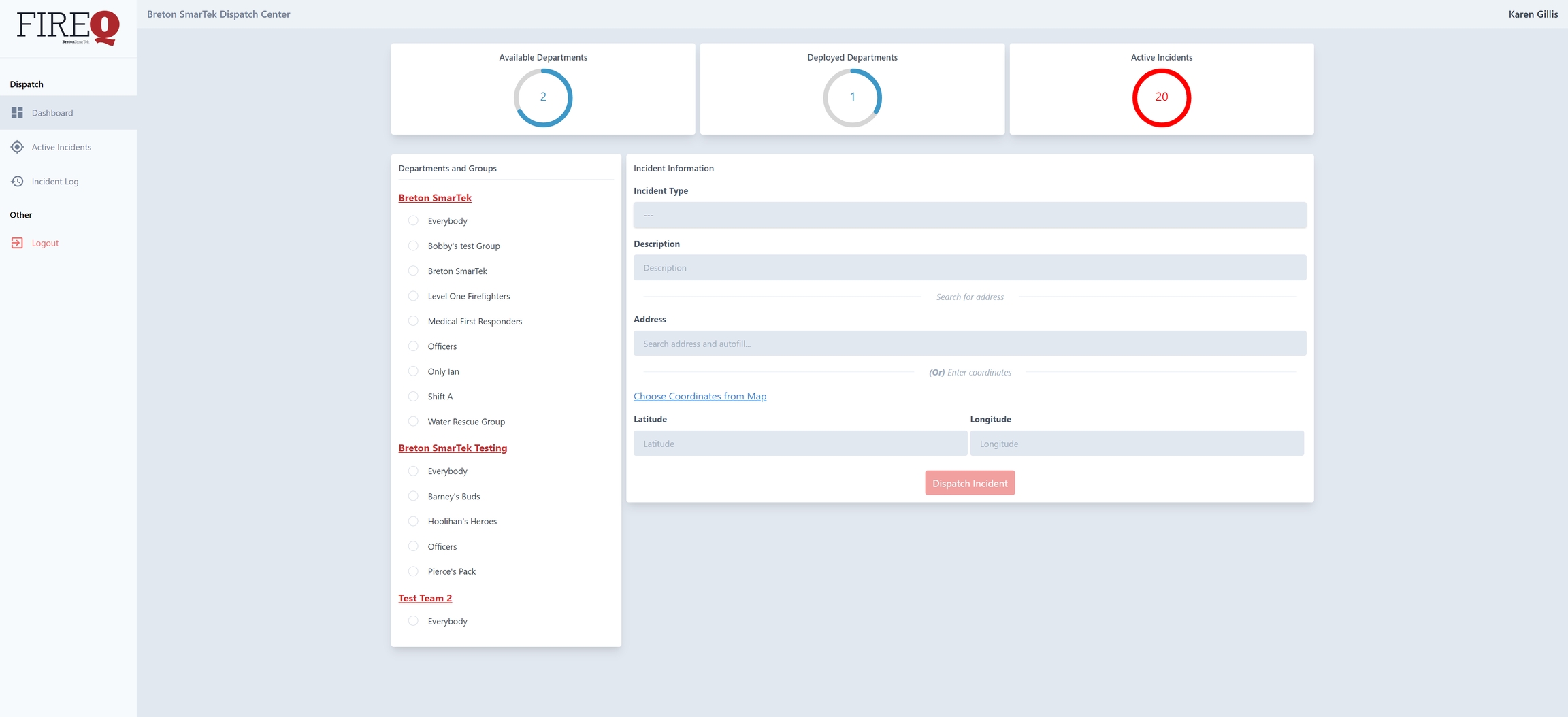
FireQ Dispatch Module
Page Relay (PageQ)
For fire departments that do not have the support of a dispatch center, FireQ provides a page record and relay solution. PageQ behaves very much like a pager in that it listens for the unique tones of a fire department. These tones activate the PageQ module which captures and records the dispatch message that follows the tones.
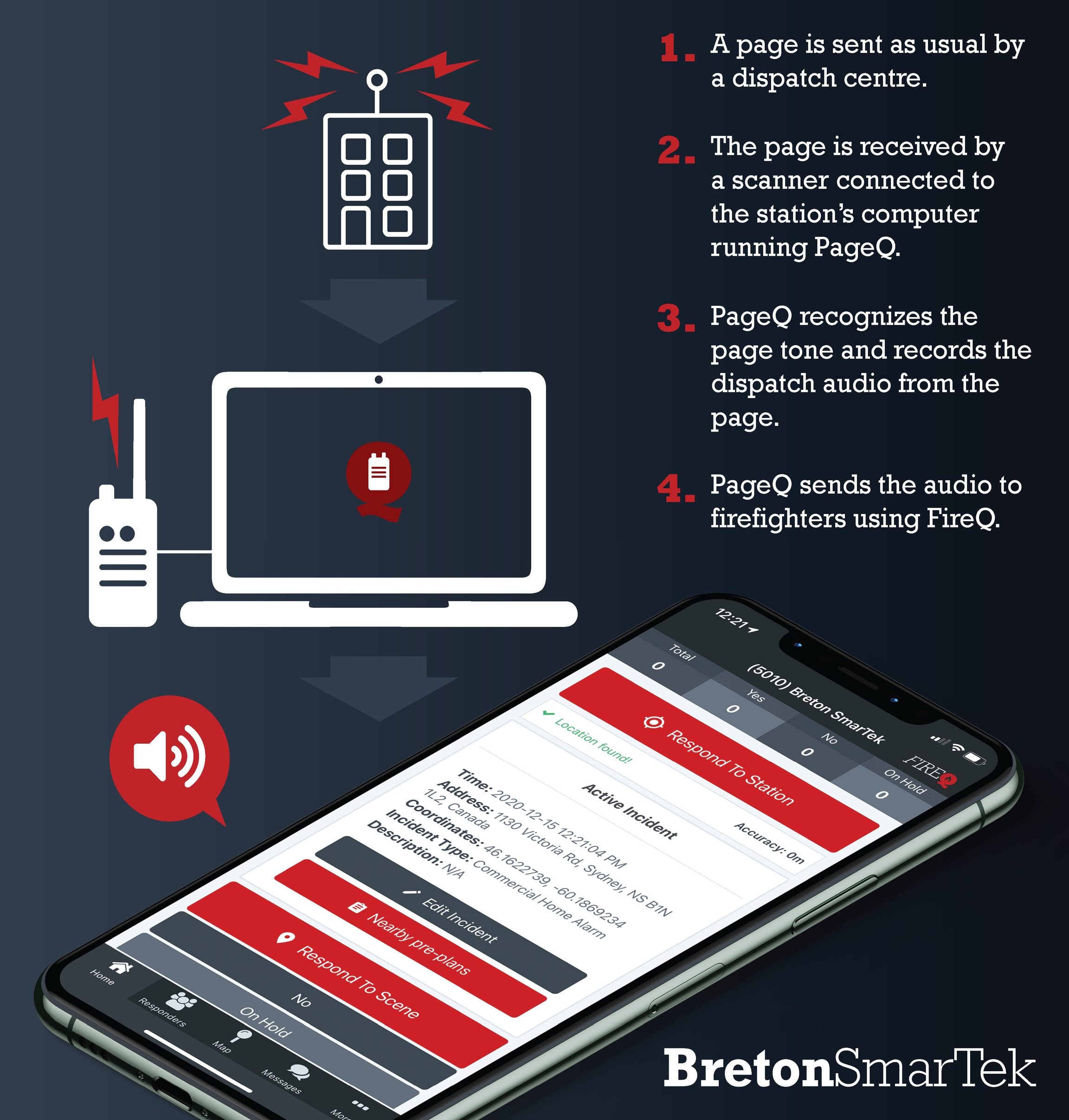
PageQ - How it Works
Page-Q Set-up
Connect a radio or scanner to the computer that is running FireQ through the headphone jack port.
We strongly recommend using an external USB sound card audio adapter. The use of a sound card adapter will allows for easier plug and play set up for PageQ. These adapters sell for about $12 and can be ordered from The Source, Amazon or any electronics store.
It is also important to note that radio or scanner placement for reception is important as the location of the radio/scanner determines the quality of audio. As the saying goes...garbage in, garbage out.
FireQ coders configure PageQ using a recording of department tones. and create an activation code for users. To activate PageQ, navigate to the SETTINGS tab and click the PAGEQ button.

PageQ navigation
Enter the 10-digit activation key which is provided by FireQ. This will automatically download and activate the PageQ configuration files, which include the tones for which the application will be listening.
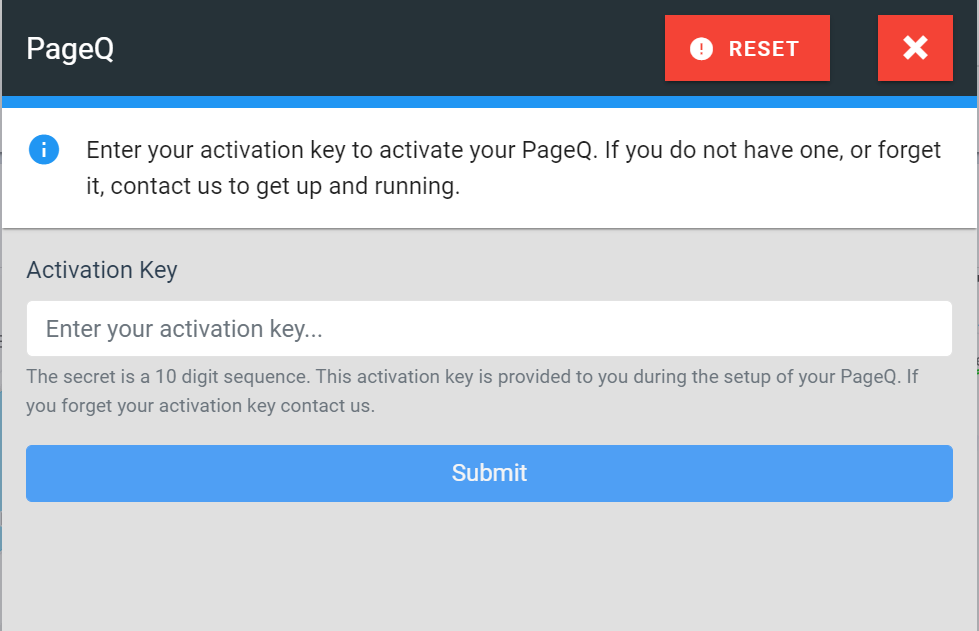
PageQ activation
If the key is valid, PageQ will open in the bottom left of FireQ. It will automatically select the computers default input device. The input device may need to be changed if the correct one is not already selected. The use of a USB sound card adapter simplifies this.
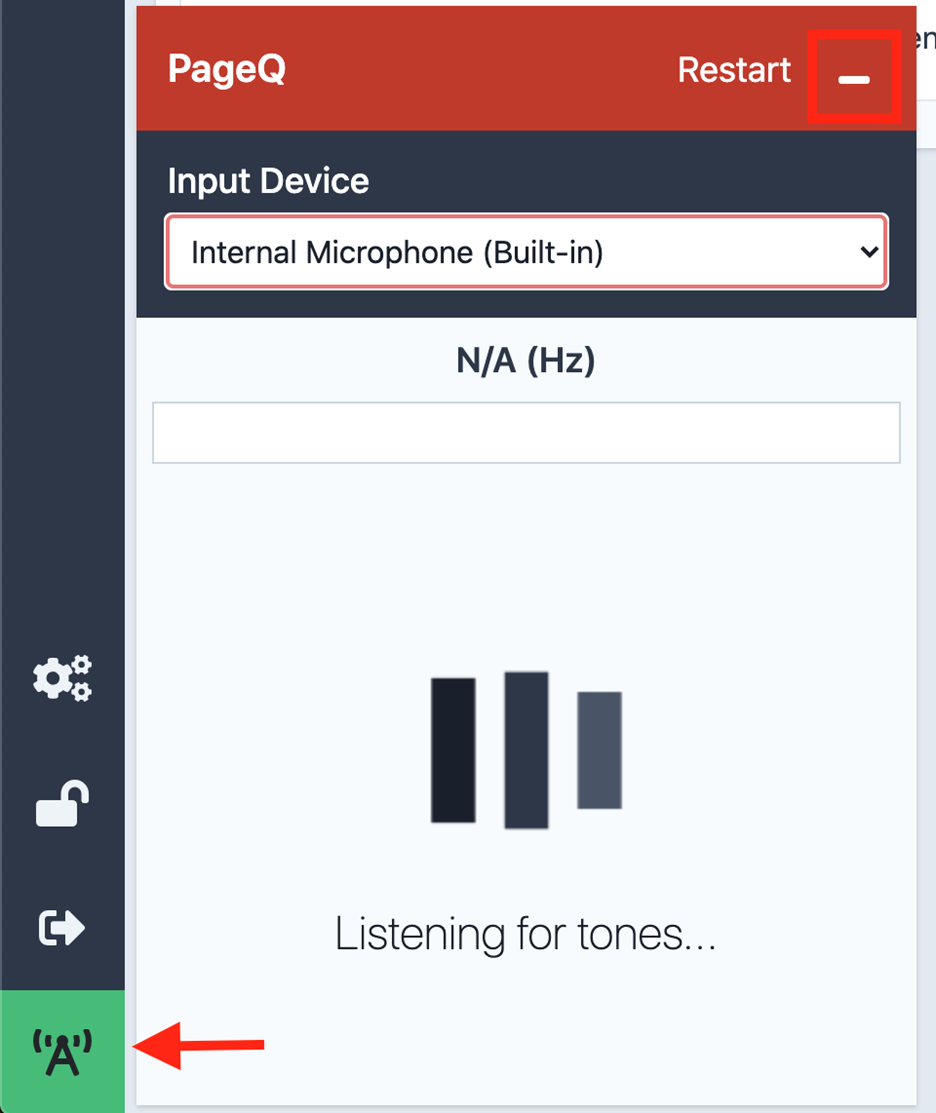
PageQ listening for tones
The listening status can be verified by making a radio transmission on the channel over which the tones are broadcasted. The transmission should cause the green bar to move. This ensures that audio from the radio is being received by PageQ.
Once PageQ has been activated and verified, it is recommended that a page test be conducted. Users should be able to be able to see the tone being detected and recorded.
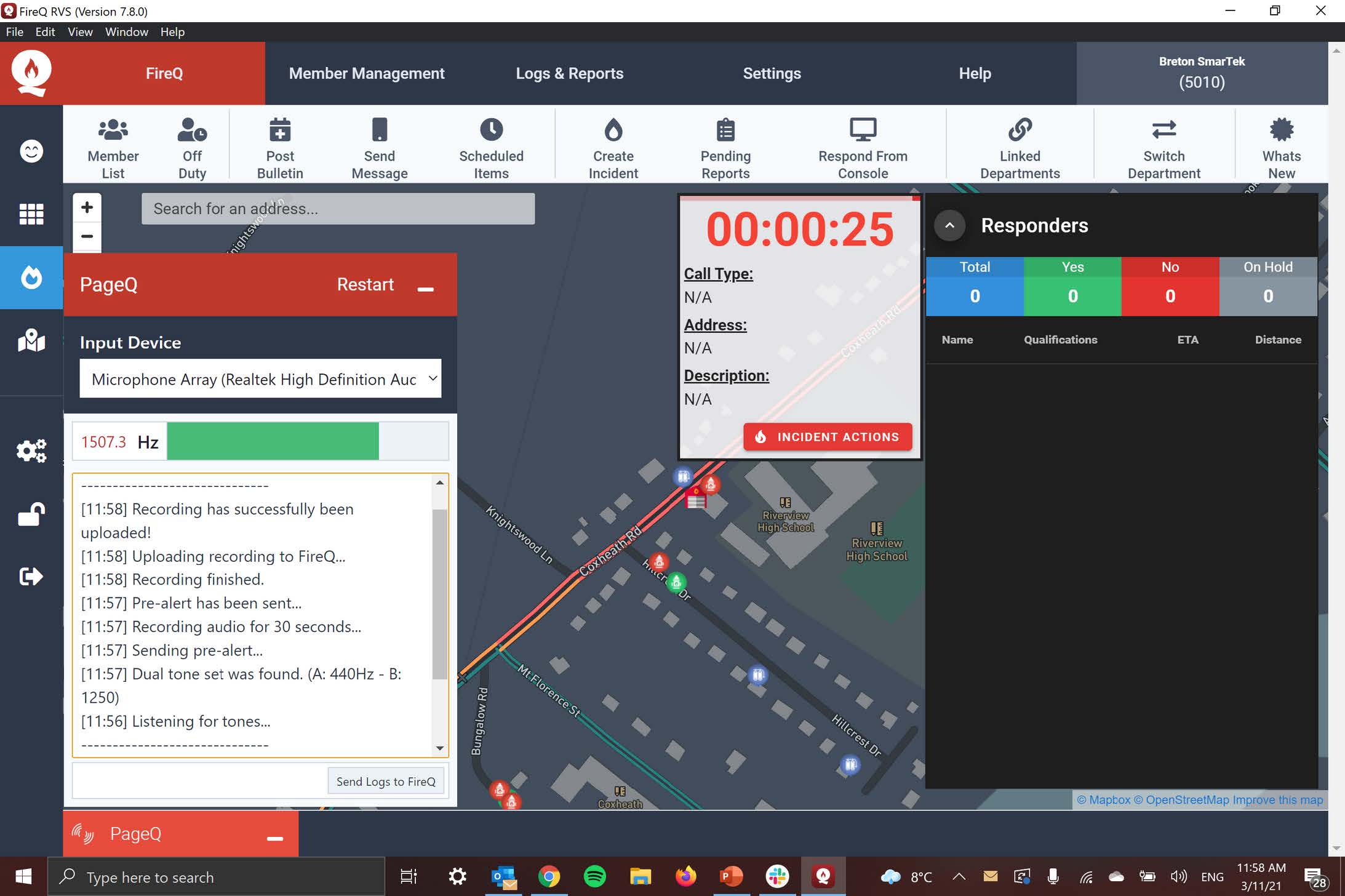
PageQ activated
Below is a downloadable Help Guide for setting up PageQ.
3MB
Department Self-Dispatch Options
Department self-dispatch options are the final tool in the FireQ dispatch tool box and are designed, specifically, to give fire departments a way to self-manage dispatch alerts.
If the pager fails, and the direct from dispatch alerts fail, and page relays fail, or if more information should be shared…firefighters can dispatch the department from the FireQ app and/or the FireQ software. Firefighters can dispatch the entire department or specific groups. When all else fails, the fire department has the ability to communicate emergency information and dispatch their firefighters.
Self-Dispatch from the FireQ Software
Navigate to the FireQ tab and click the CREATE INCIDENT button.

FireQ create an incident navigation
Enter the following information:
-
Address of the incident location.
-
Select the incident type from the drop-down list.
-
Enter a description of the incident.
-
Self-dispatch automatically generates an in-app notification to all active and on-duty firefighters. To add phone calls and text messages, place a check mark in the box.
-
Click the CREATE INCIDENT button to send the dispatch information.
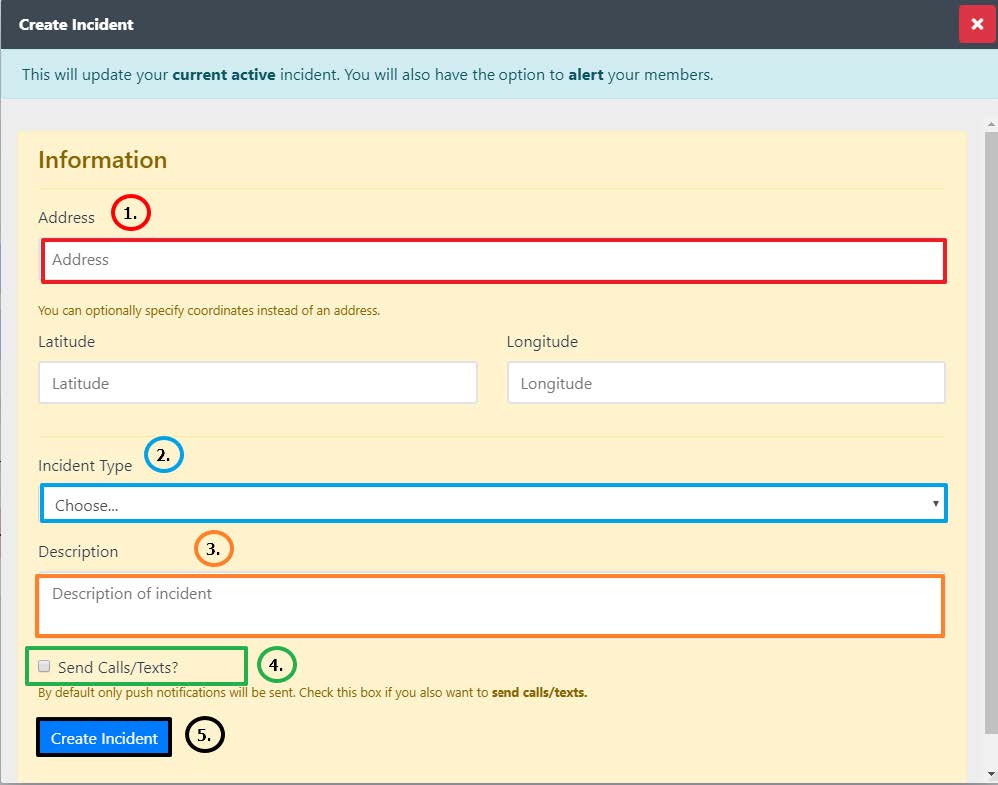
FireQ Create an Incident
Self Dispatch from the FireQ App
From the FireQ app, firefighters have two options:
-
General Dispatch: A one-button solution that sends an alert to firefighters advising them to report the fire station for an ongoing emergency.
-
Manual Dispatch: Alternatively, fire departments can also self-dispatch firefighters by entering address/coordinates, incident type, and incident description. Firefighters also have the choice of dispatching the entire department or specific groups within the department.
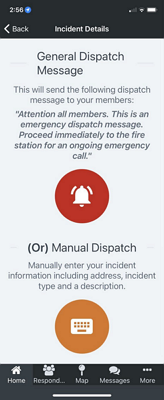
FireQ App Self-Dispatch Options
How to Send a Generic Station Dispatch Message
From the HOME screen of the FireQ app, tap the STATION DISPATCH button. Choose GENERIC DISPATCH and confirm your selection.
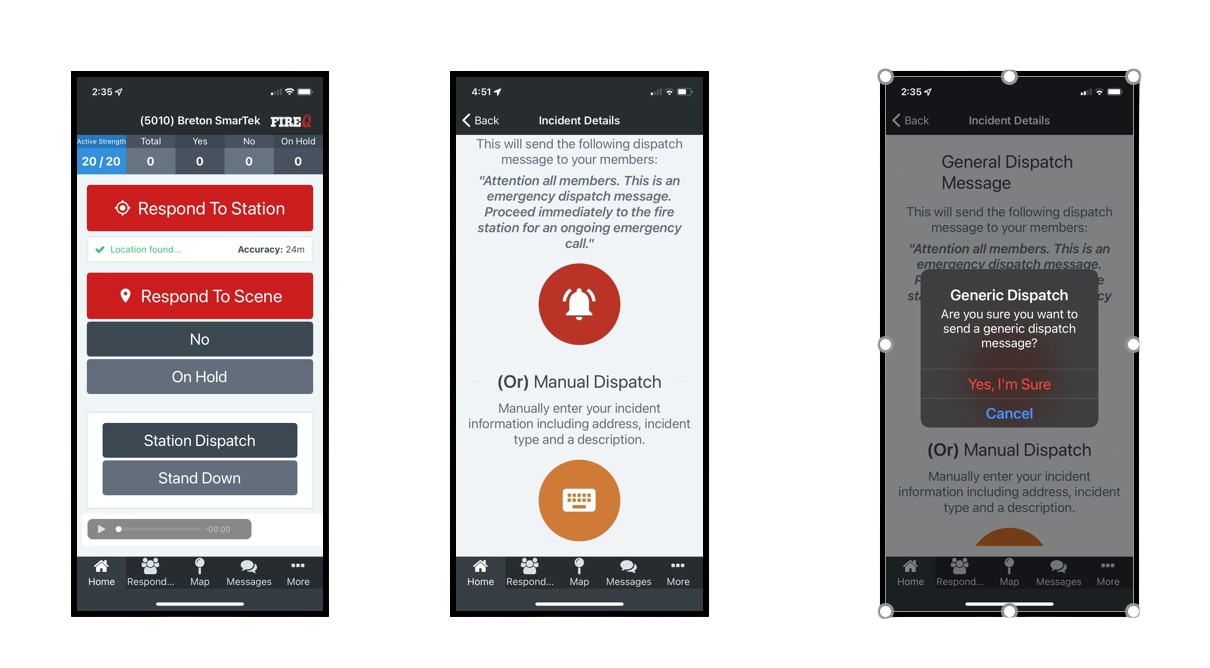
FireQ App Generic Self-Dispatch View
How to Send a Manual Station Dispatch Message
From the HOME screen of the FireQ app, tap the STATION DISPATCH button. Choose MANUAL DISPATCH. Enter the address, incident type, and incident description. Place a check mark in the box if calls and texts are desired. Tap the CREATE button to send the message.
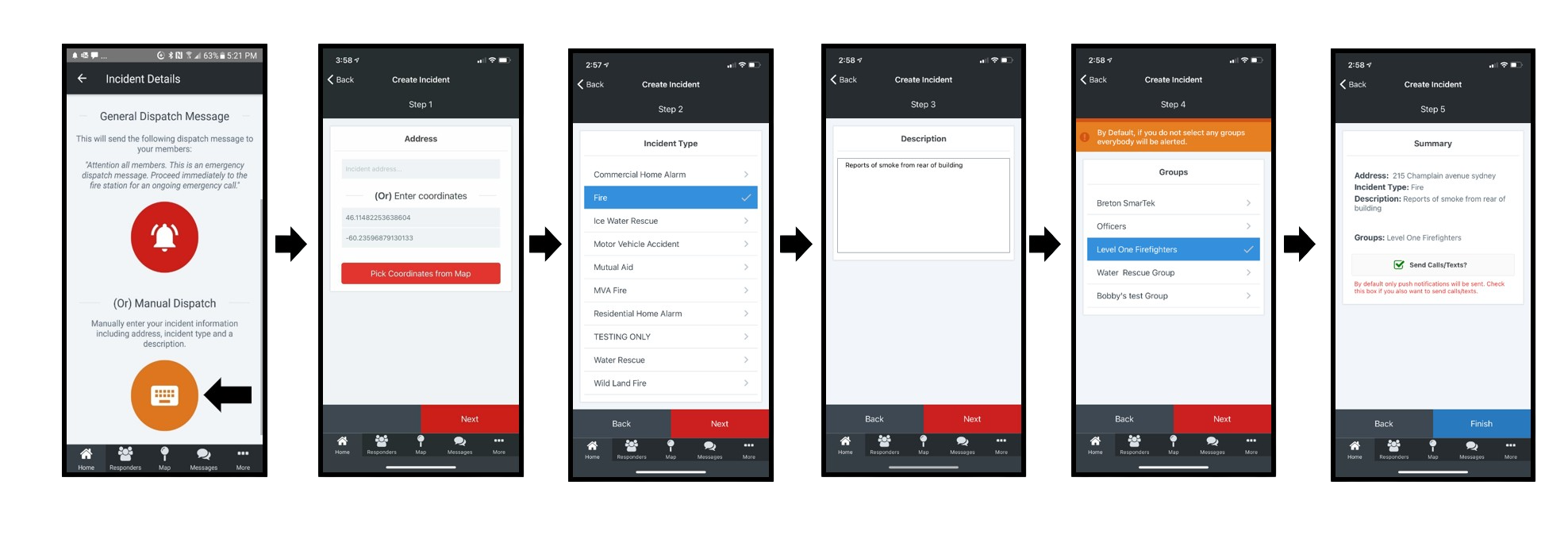
FireQ App Manual Self-Dispatch View
It is important to note that only firefighters with the appropriate permissions will be able to self-dispatch from the FireQ app.