FireQ Notification Center
FireQ opens to the Notification Center unless there is an active incident ongoing. The Notification Center displays fire department data.
GOOD TO KNOW: The FireQ Notification Center contains relevant fire department information in an easy-to-digest way and many departments display FireQ on a tv in the bay areas of their fire departments.
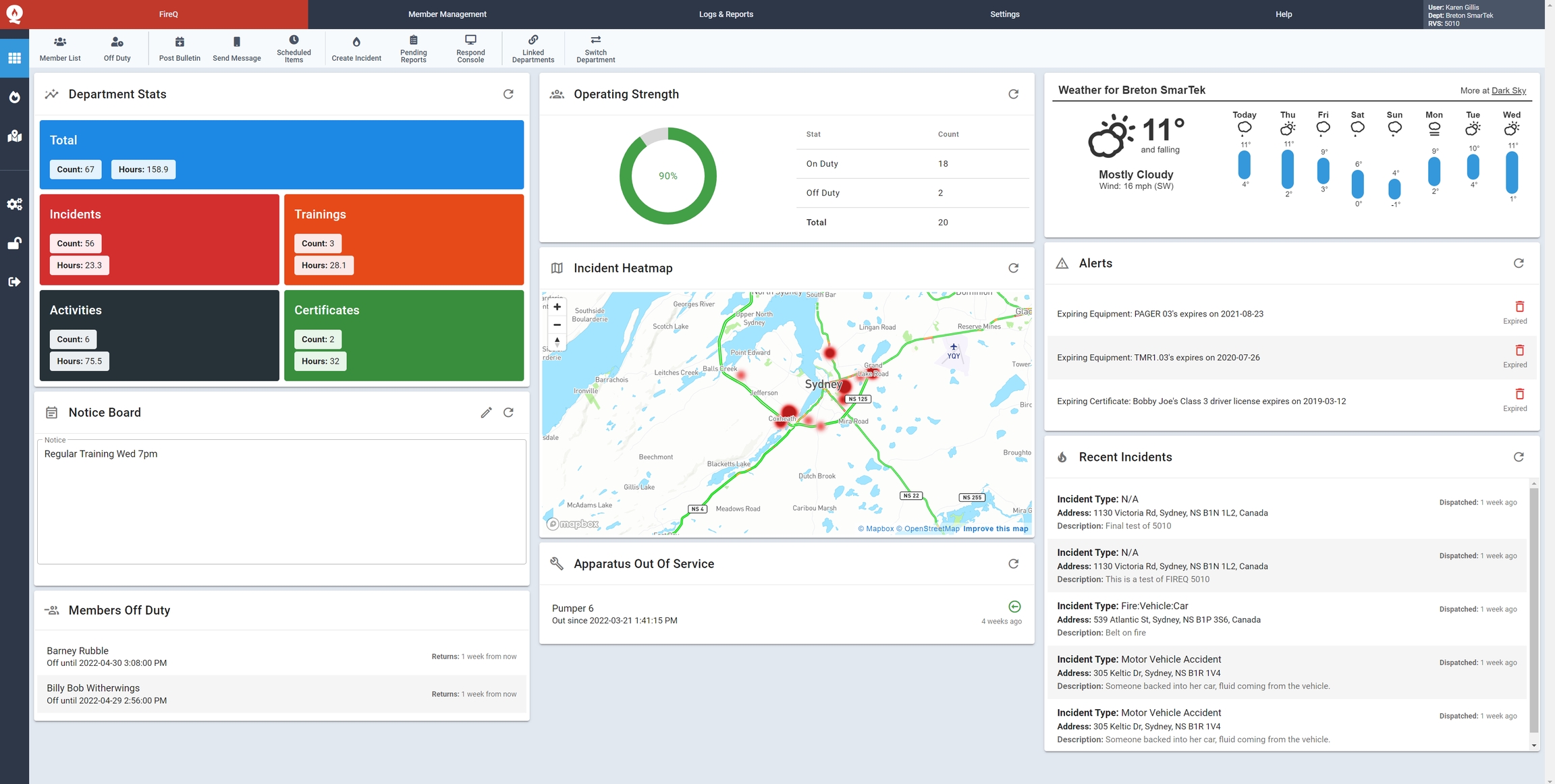
FireQ Notification Center
What you can see on the FireQ Notification Center
There are 10 different information modules that can displayed in the FireQ Notification Center.
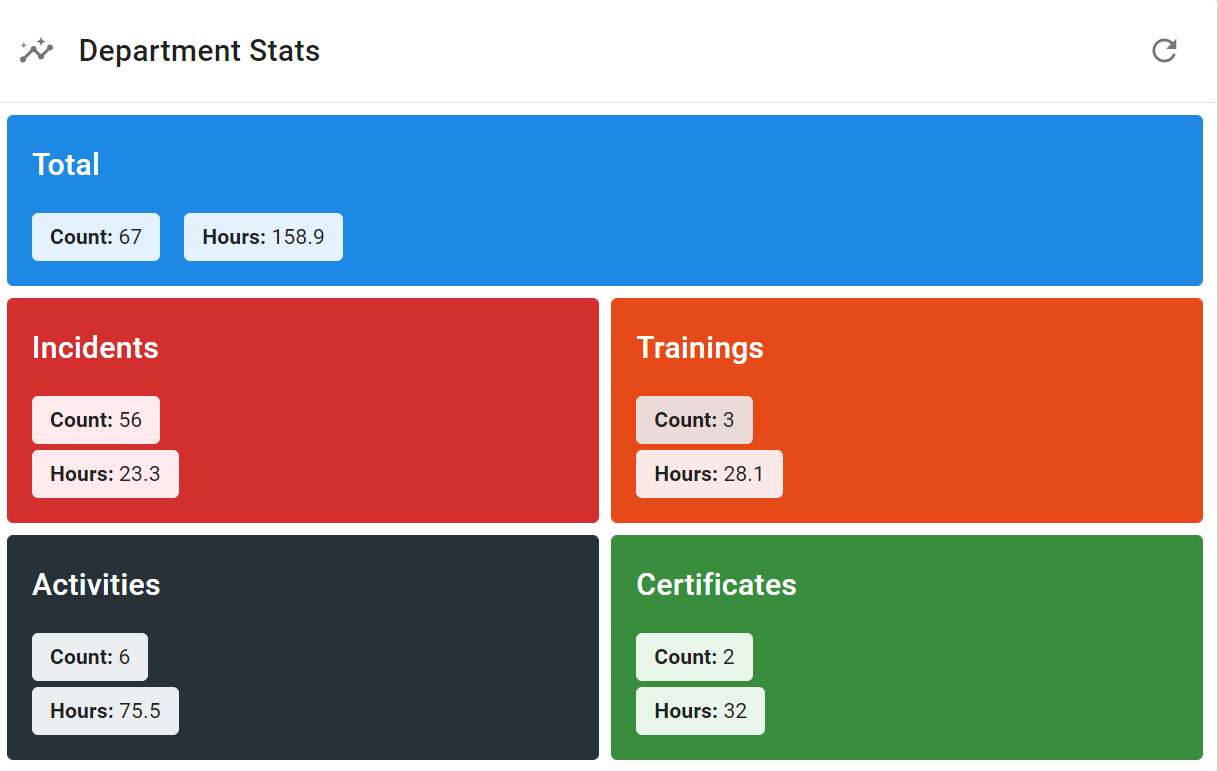
Fire Department Stats
Fire department stats provide a running total of the number and hours of incidents, trainings, certifications, and other activities.
Alert Module
When expiry and re-certification dates are entered into FireQ, specific members of the fire department receive reminders about upcoming expiries. The alert module on the Notification Center displays these reminders all in one place.
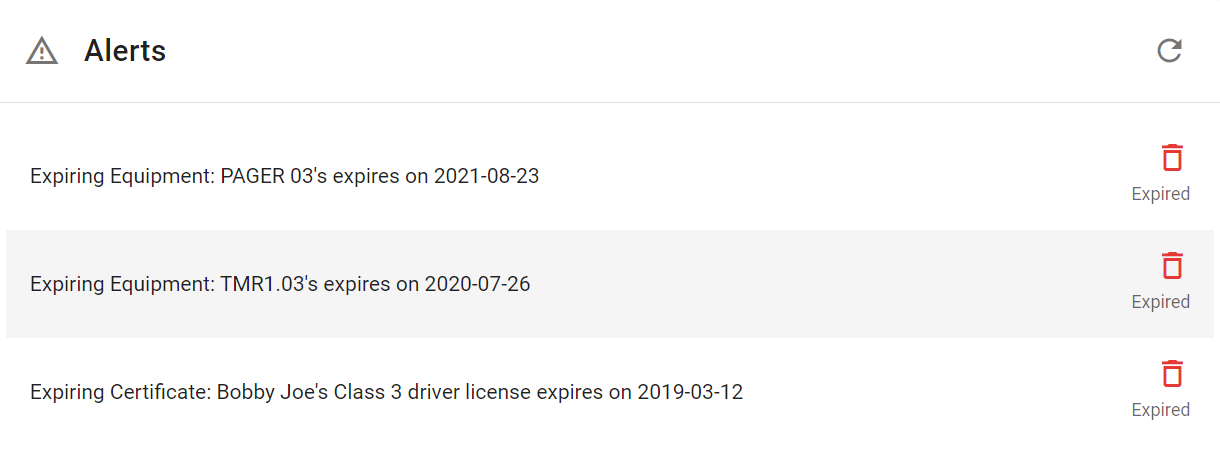
FireQ Notification Center - Alerts
GOOD TO KNOW: FireQ expiry alerts are also sent via in-app notification to firefighters with the rank of Captain and above assigned within the FireQ system.
Apparatus Out of Service
The current operational status of your apparatus can be placed on the Notification Center, displaying quickly and easily when an apparatus has been removed from service.

FireQ Notification Center - Apparatus Out of Service
Bulletins
Bulletins are one of the message channels available within FireQ. They are used to communicate important dates and notices, training for example. Bulletins can be created in the FireQ software or on the FireQ app. They can be sent immediately or scheduled, and they can be assigned an expiry date. Bulletins are received by firefighters in the FireQ app, text, and email. A list of current bulletins can be posted on the Notification Center.
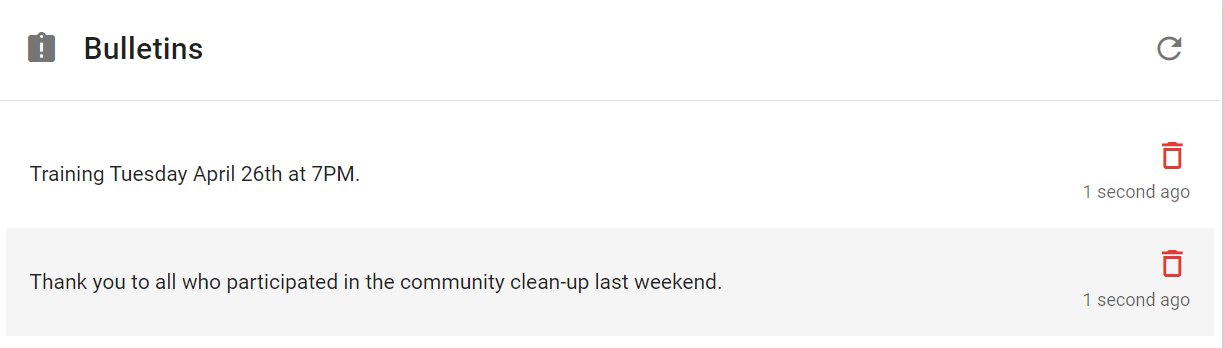
FireQ Notification Center - Bulletins
GOOD TO KNOW: Bulletins are sent via text, in-app notifications and email which means firefighters who don't have a smartphone can receive them.
Incident Heat Map
Incident data captured by FireQ can be displayed in the incident heatmap, allowing firefighters to visualize the location of emergencies within their territory.
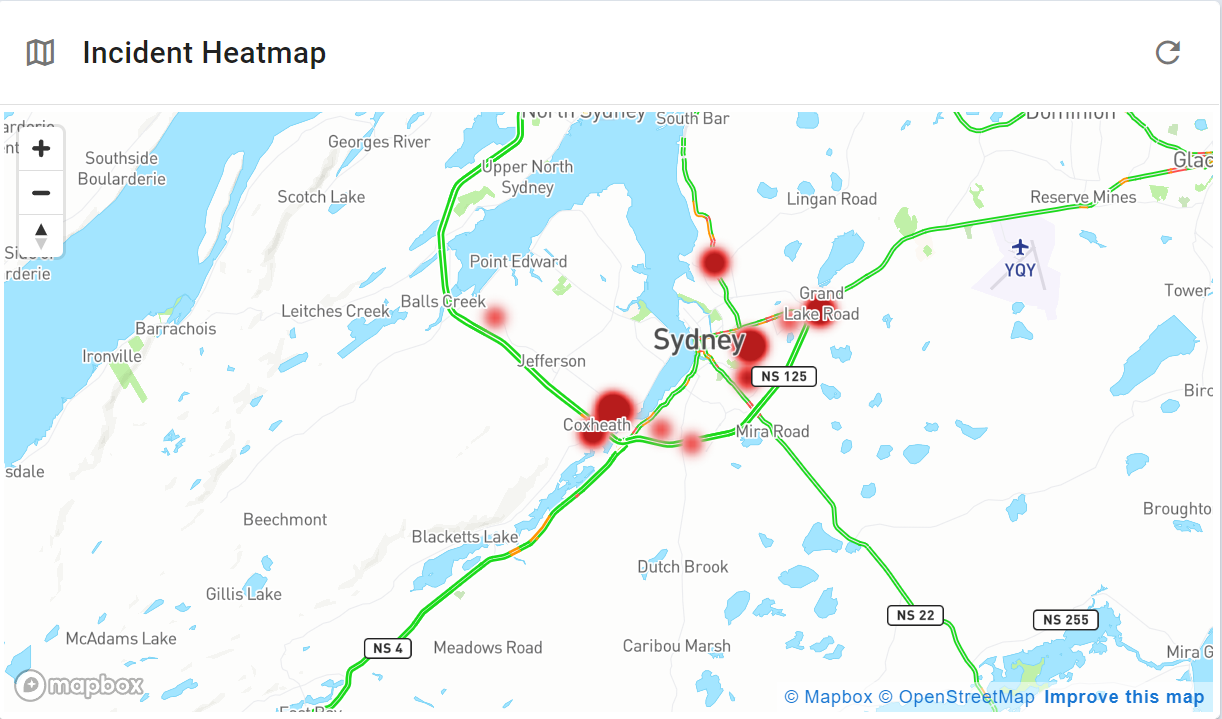
FireQ Notification Center - Heat Map
Recent Incidents
A chronological list of the most recent incidents responded to by the fire department can be placed on the Notification Center.
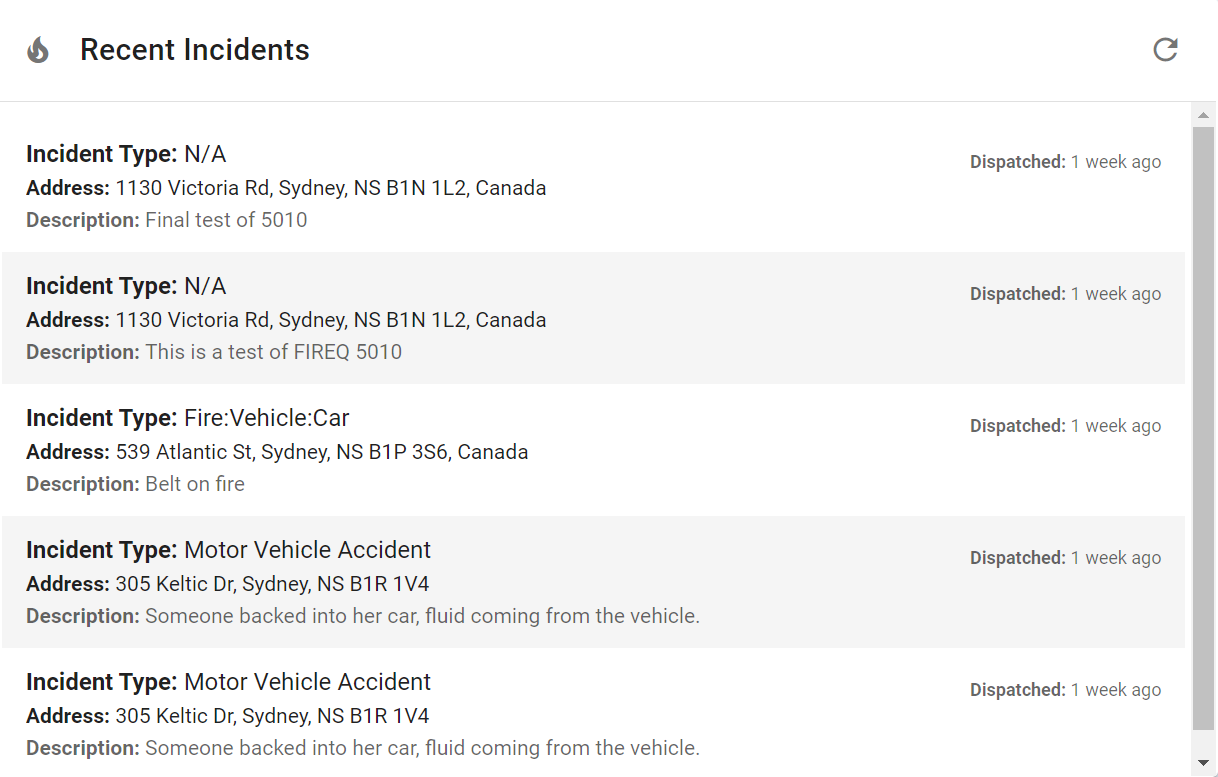
FireQ Notification Center - Recent Incidents
Notice Board
The Notification Center also includes a notice module that acts like an electronic bulletin board where such things as training reminders can be posted.
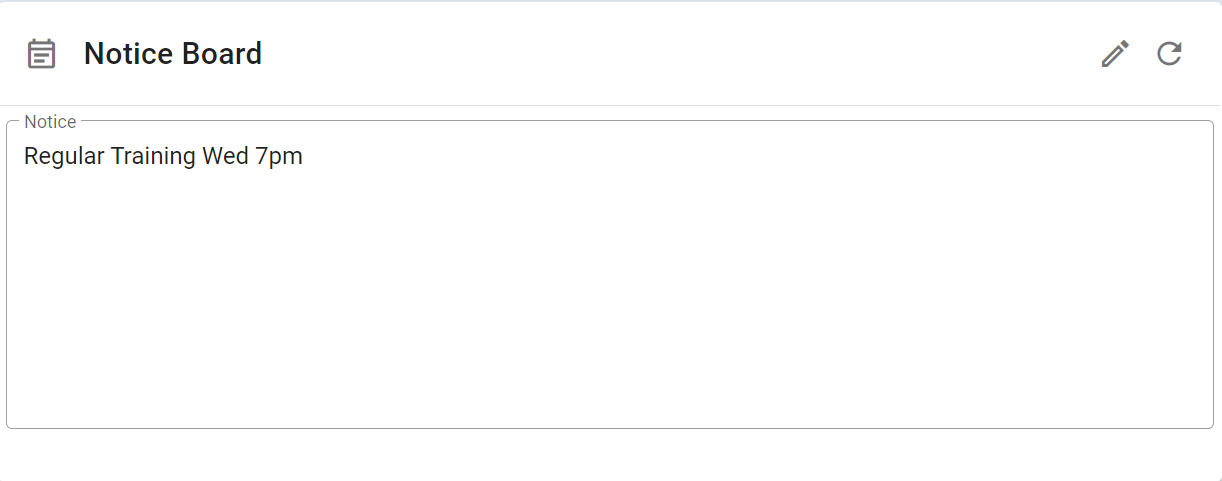
FireQ Notification Center - Notice Board
Members Off Duty
Firefighters can place themselves off duty using the FireQ app. Firefighters can list times when they are unavailable, as well as the date of their return. Using this information, a list of off-duty firefighters can be placed on the Notification Center.
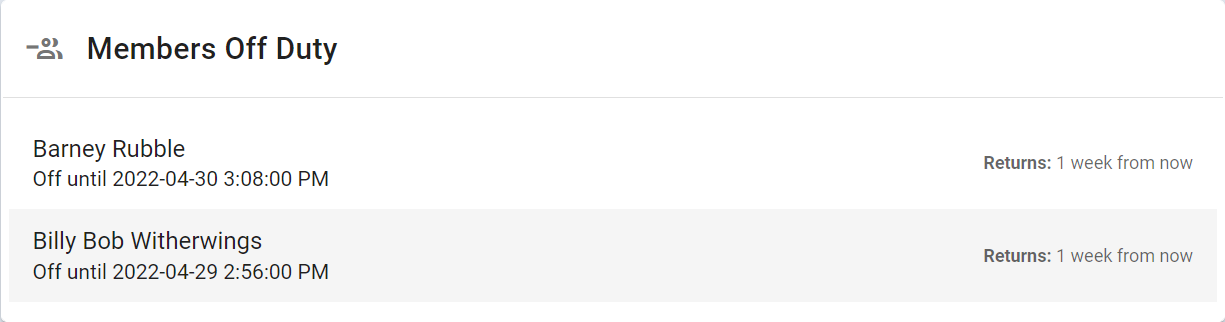
FireQ Notification Center - Members Off Duty
GOOD TO KNOW: Officers also receive notification within the app when a firefighter himself/herself off duty.
Operating Strength
The Notification Center can also display operating strength which shows, at a glance, how many firefighters are on duty and off duty.
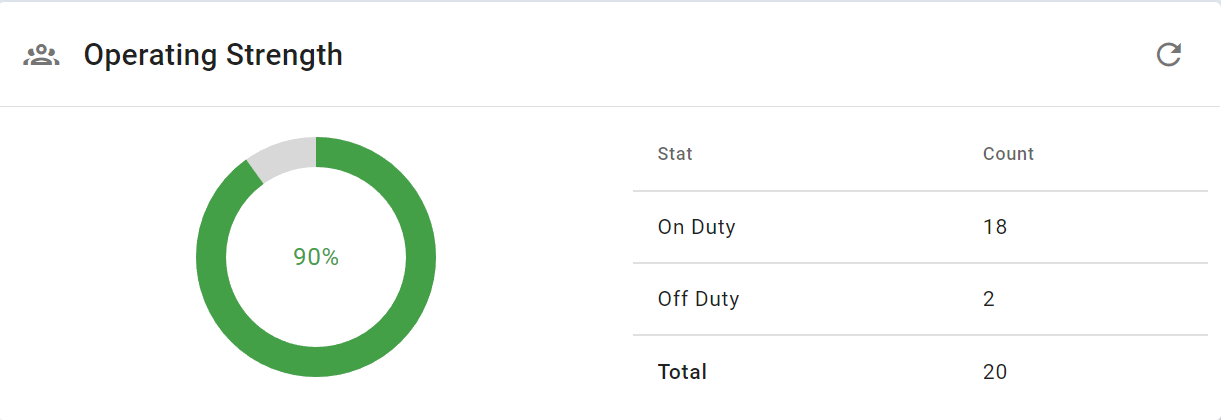
FireQ Notification Center - Operating Strength
Weather
A weather window displaying the current weather in the local region can be placed on the Notification Center.
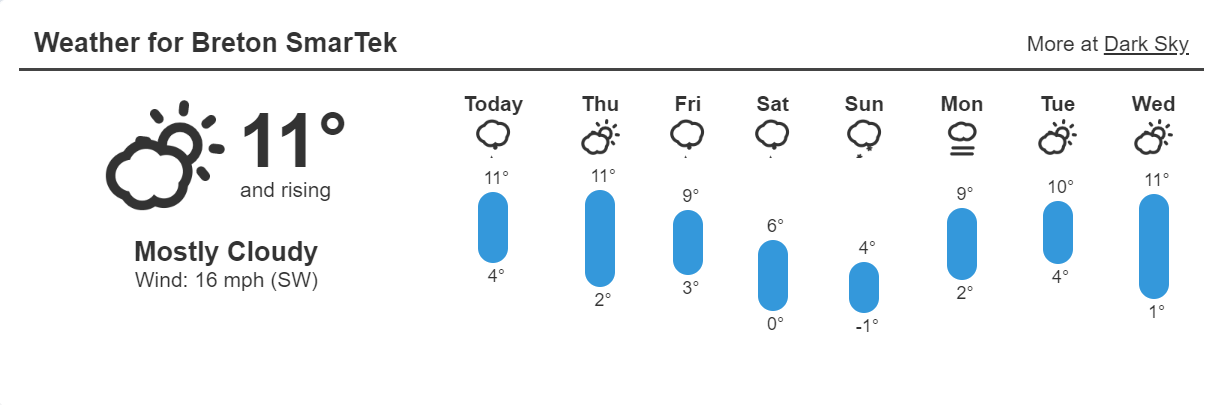
FireQ Notification Center - Weather
Arranging Your Notification Center
The FireQ Notification Center can be arranged by the fire department to display the information relevant to each fire department. To arrange your dashboard, navigate to the SETTINGS tab and click the GENERAL SETTINGS button.

FireQ Dashboard Settings Navigation
Select DASHBOARD SETTINGS. Data can be visualized in one, two, or three columns, making it visually pleasing on any device.

FireQ Notification Center Display Options
From the dropdown menu, select the data you want to occupy each space. You can place more than one data module in a space, having them change every 15 seconds and creating a presentation effect.
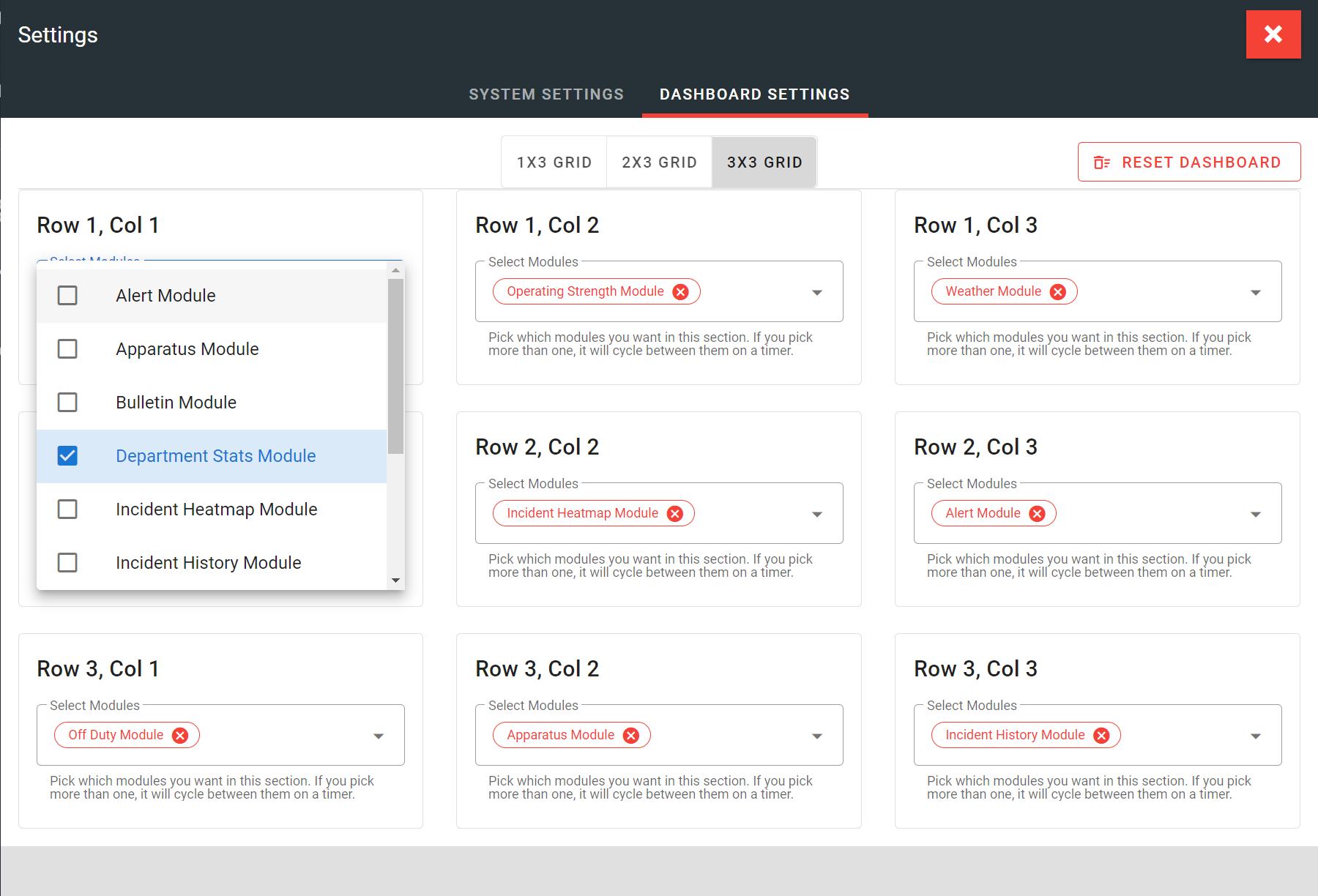
FireQ Notification Center How-to