Incident Reporting
FireQ automatically creates an incident report that includes dispatch information and the firefighters who responded using FireQ.
FireQ Internal Incident Reports
The internal FireQ incident report collects the most common types of data captured in a fire incident report. Firefighters hours are calculated from data contained within the internal FireQ report.
The FireQ incident report captures:
-
Time and date details of the incident.
-
The apparatuses involved in the incident.
-
The firefighters who responded to the incident.
-
Extra notes.
-
Attached files.
FireQ will use the DEPART TIME and the RETURN time to calculate the numbers of hours earned by firefighters. If this information is not filled out, no hours will be calculated.
How to Capture What Apparatus Firefighters Were Assigned To
Firefighters who have responded to a specific incident can be attached to responding apparatuses.
To add a firefighter to a specific apparatus, click the red plus button. From the drop-down menu, select the appropriate apparatus and place a check mark by the names of the firefighters who were on that apparatus.
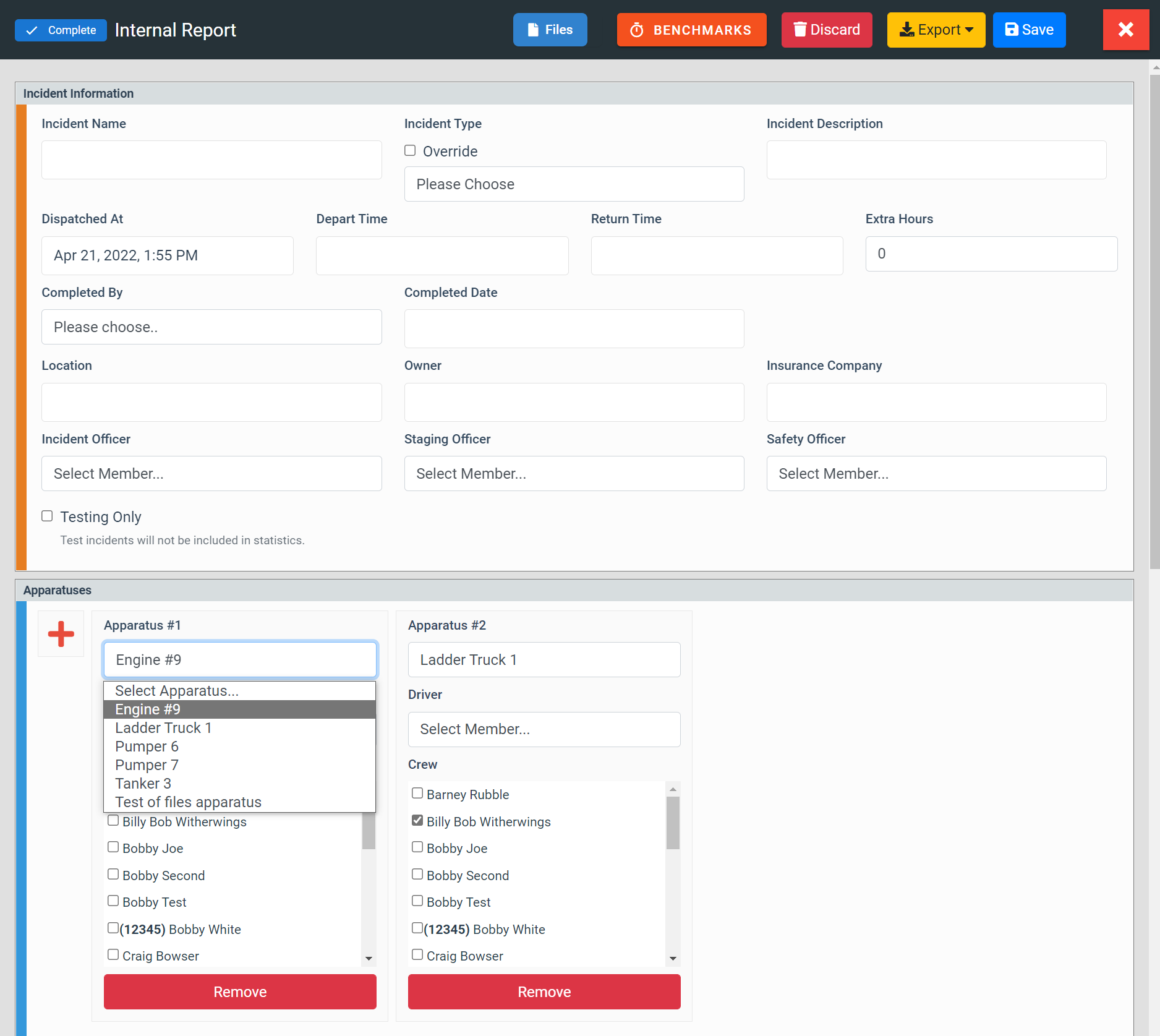
Attaching Firefighters to an Apparatus in the Incident Report
How to Add / Remove Firefighters to the Internal Incident Report
To add or remove a firefighter to the internal report, navigate to the incident log and select the desired report in the incident report.
LOGS & REPORT > INCIDENT LOG
In the responders block of the incident report, find the firefighters name you want to add. Click the "X" to add the firefighter to the report. Click the checkmark to remove a firefighter from the report.
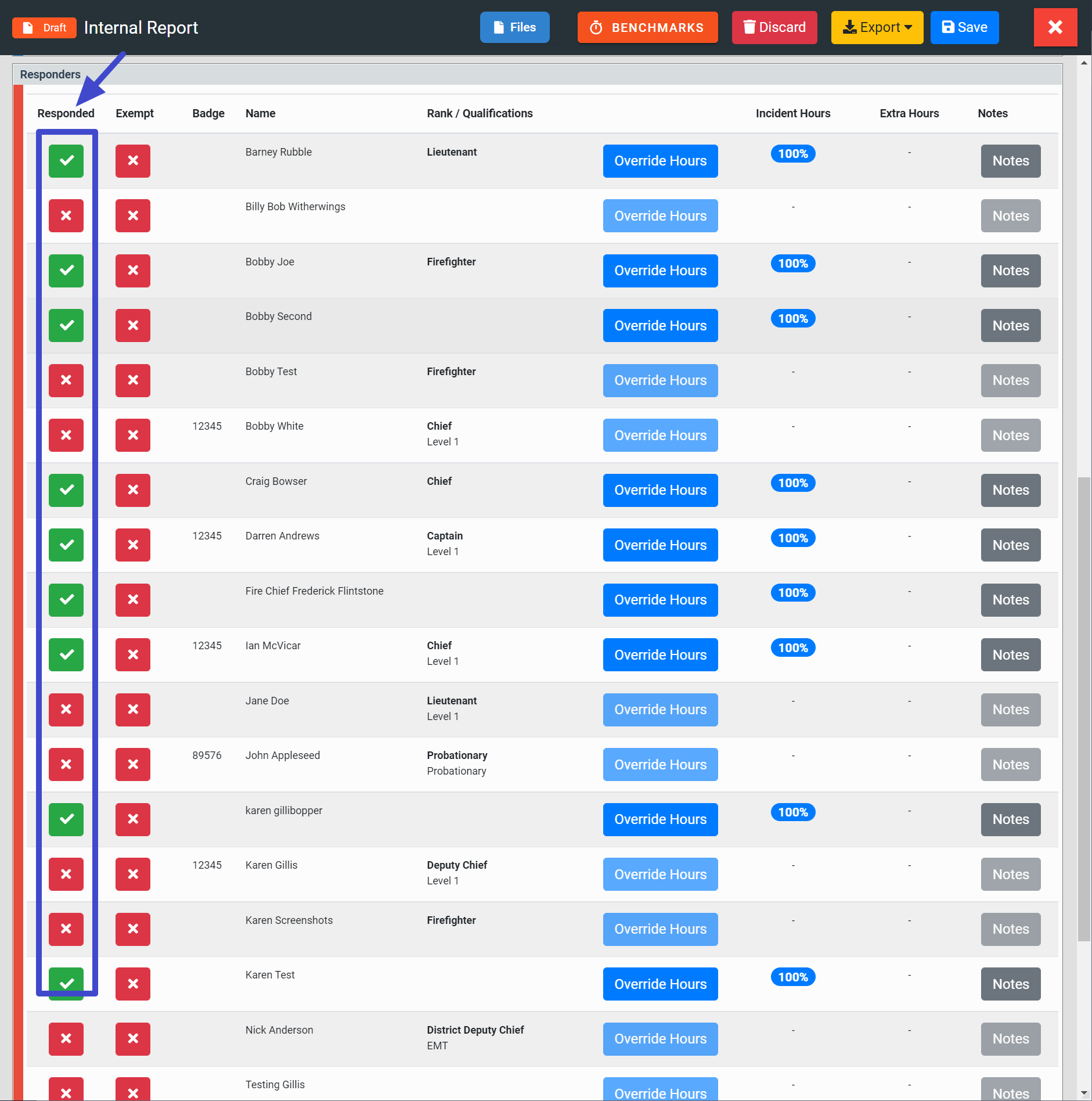
Add or Remove a Firefighter from the Internal Report
How to Exempt a Firefighter from an Incident
Firefighter hours are calculated using data from the incident report and comparing that data to the total number of incidents for the fire department. Firefighters who cannot respond due to injury (or other valid reason) would then have lower participation ranks.
To exempt a firefighter from a specific incident, click the EXEMPT button.
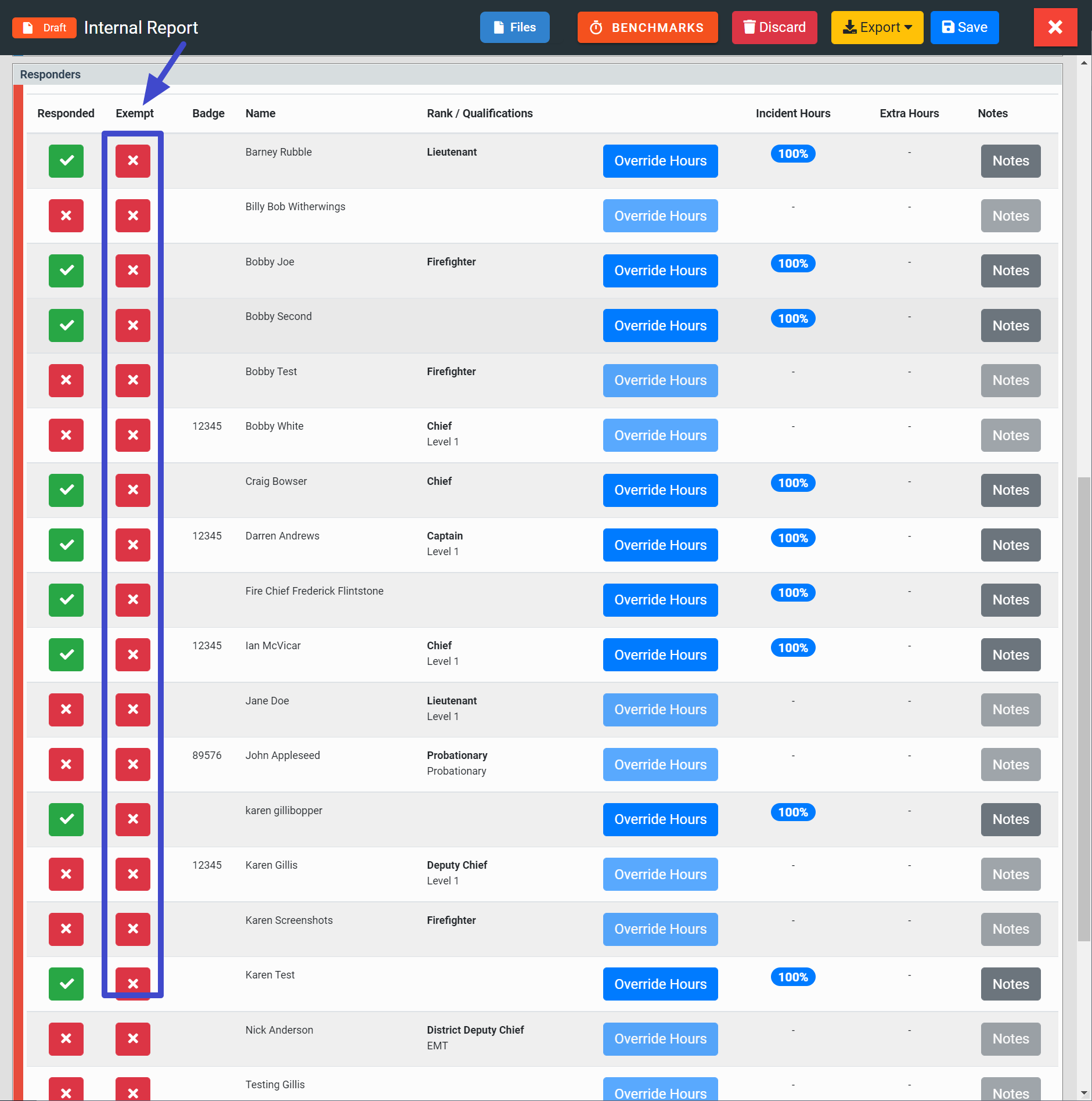
Exempt a Firefighter from the Internal Report
How to Attach a File to an Incident Report
Supporting documentation, like photos, can be added to the incident report. To add additional documentation, open the appropriate incident report and click the FILES button.
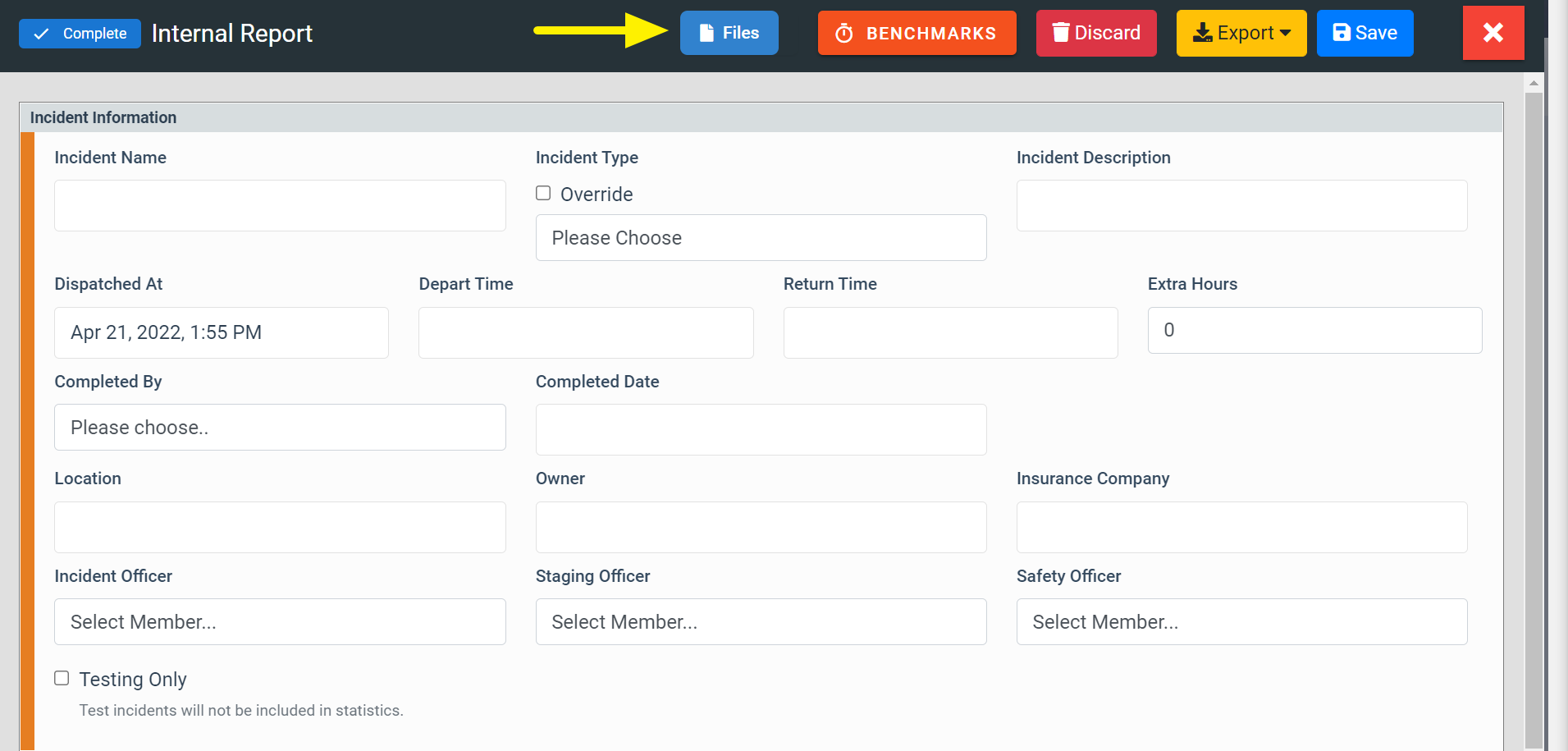
Attach files to FireQ incident report
Exporting Incident Reports
Once the report is completed, you have several export options:
-
You can print the report.
-
You can create a PDF of the report.
-
You can send the report via email.