Benchmarking
The FireQ system contains benchmarking to help firefighters assess and record the situational points that are normally evaluated at every fire. They are automatically added to your incident report.
Using Benchmarks within the FireQ App
Firefighters can time-date stamp important milestones of an emergency response, as well as include which firefighters and which apparatus participated in each task. Captured benchmarks automatically appear in incident reports.
During an active incident, firefighters with the necessary permissions will see a BENCHMARK button available to them on the FireQ app.
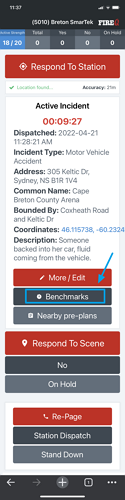
FireQ Benchmark Button
Tap the BENCHMARK button to see a list of the available benchmarks within your FireQ system. Tap the desired benchmark to mark it complete, to start a timer, or to tag members and apparatus.
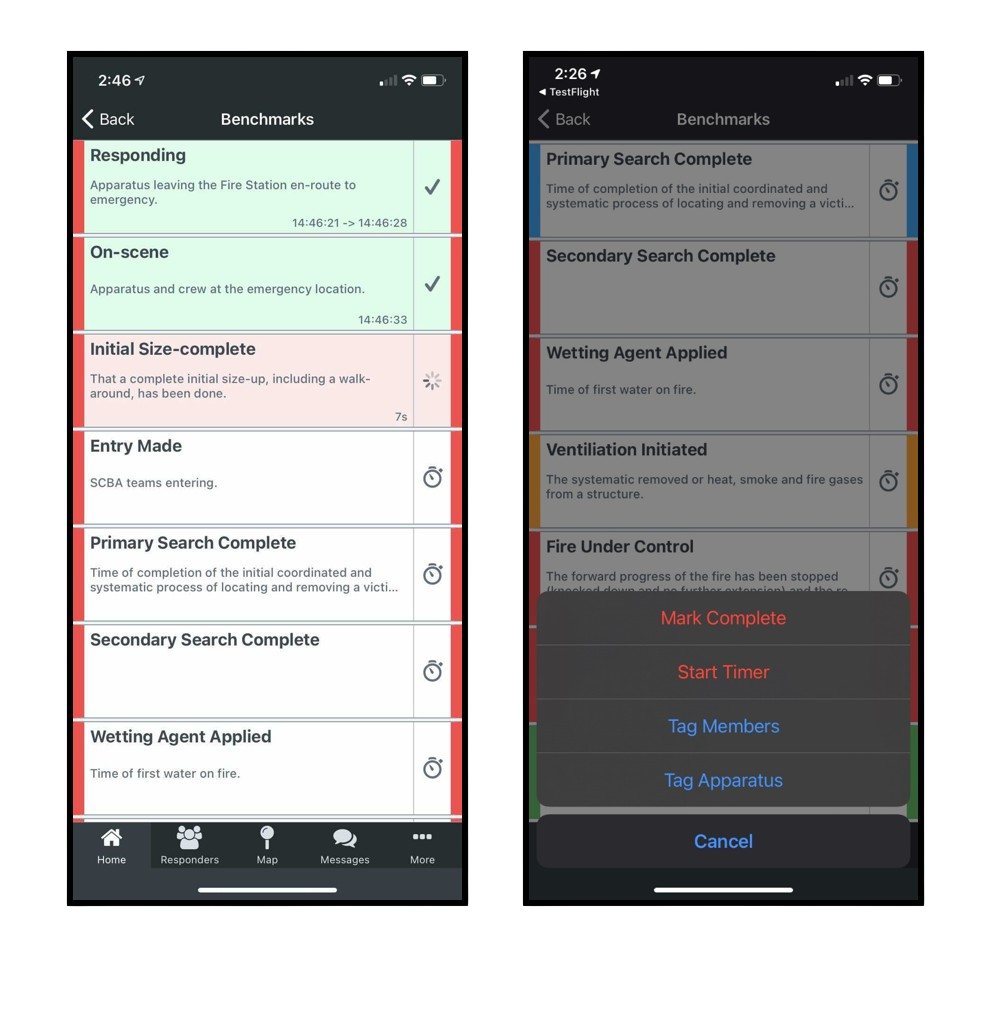
FireQ Benchmarks App View
Benchmarks in the FireQ Software
Benchmarks are found under the LOGS & REPORTS tab.

FireQ Benchmarks Navigation
To see a list of the benchmarks automatically included in your FireQ system, navigate to the LOGS & REPORTS tab, and click the BENCHMARK button.
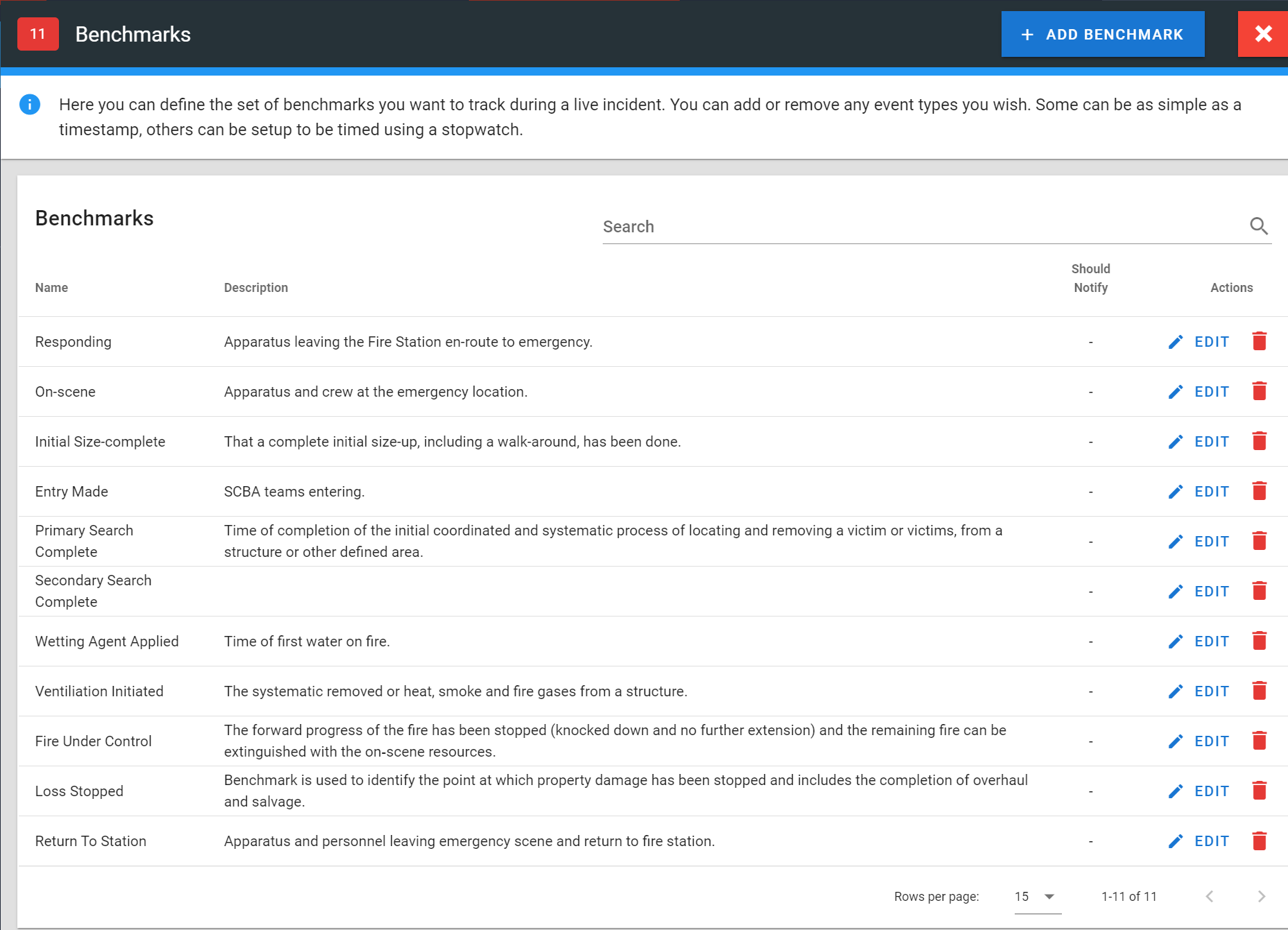
FireQ Benchmarks List
Adding Your Own Benchmarks
To add your own benchmark to FireQ, click the ADD BENCHMARK button.
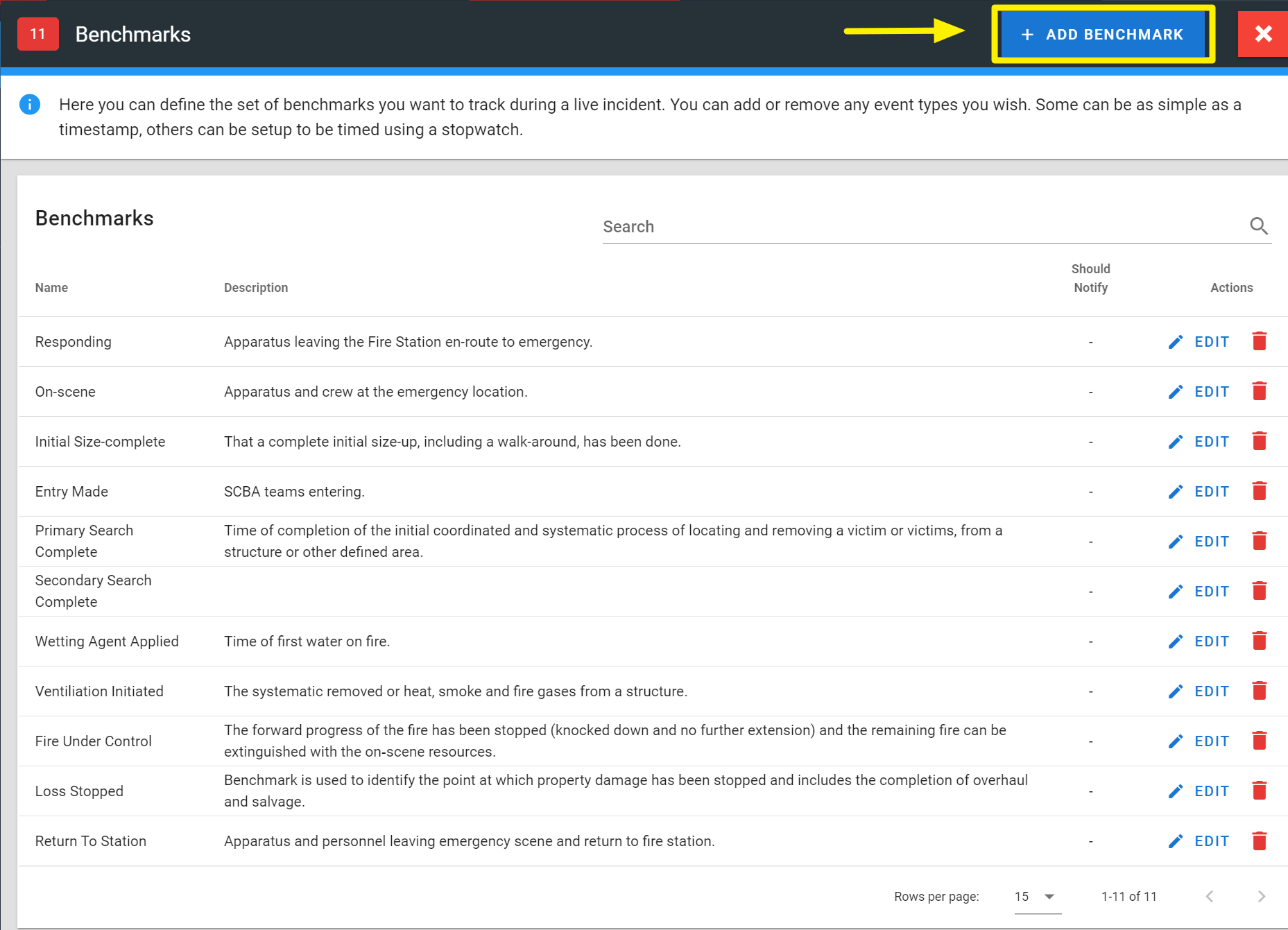
FireQ Add a Benchmark
Complete the following steps:
-
Give the benchmark a name. This is important as benchmarks could be part of the official record of the emergency incident.
-
Provide a description for the benchmark. This is also important as benchmarks could be part of the official record of the emergency incident.
-
Select a colour for the benchmark. This allows for easy visual distinction of each benchmark when viewed within the FireQ app.
-
Place a checkmark in the box next to “Should Tag Apparatus” if you want the ability to add a particular apparatus to the benchmark. The on-scene benchmark, for example, includes the ability to tag an apparatus so that you can record which piece of apparatus arrived on scene first. (In order for a specific apparatus to appear in the list, the apparatus must be entered in the membership management section of your FireQ system. MEMBER MANAGEMENT>MEMBERS ADD/EDIT)
-
Place a check mark in the box next to “Should Tag Members” if you want the ability to add specific firefighters to the benchmark. Again, the on-scene benchmark includes the ability to tag members so that you can record which firefighters arrived on scene first. ((In order for a specific apparatus to appear in the list, the apparatus must be entered in the apparatus section of your FireQ system. LOGS & REPORTS>APPARATUS LOG)
-
Place a checkmark in the box next to “Should Notify” if you want to notify specific personnel about the completion of a particular benchmark. (_In order to receive benchmark notifications, firefighters who hold the appropriate rank must be identified within FireQ. Rank can be added or changed within the member profile. MEMBER MANAGEMENT>MEMBERS ADD/EDIT)_If this option is selected, people with the following ranks will receive notifications:
1.) Fire Chief
2.) District Deputy Chief
3.) Deputy Chief
4.) Captain
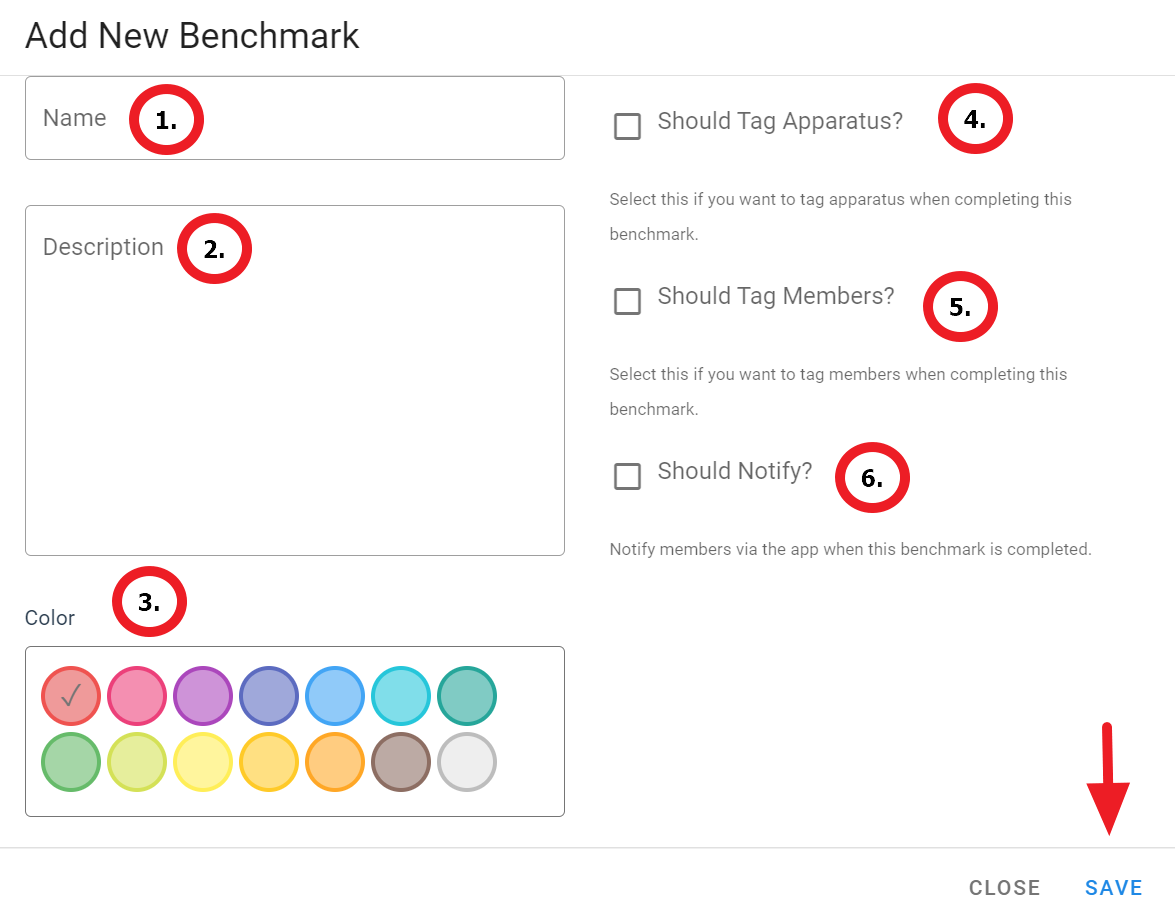
How to add a FireQ benchmark
Click the SAVE button.
Benchmarks on the FireQ Incident Report
Captured benchmarks are visible on the internal FireQ incident report. To view benchmarks on an internal report, navigate to the incident log.
LOGS & REPORTS > INCIDENT LOG
Find the incident report you want to view and click the OPEN button.
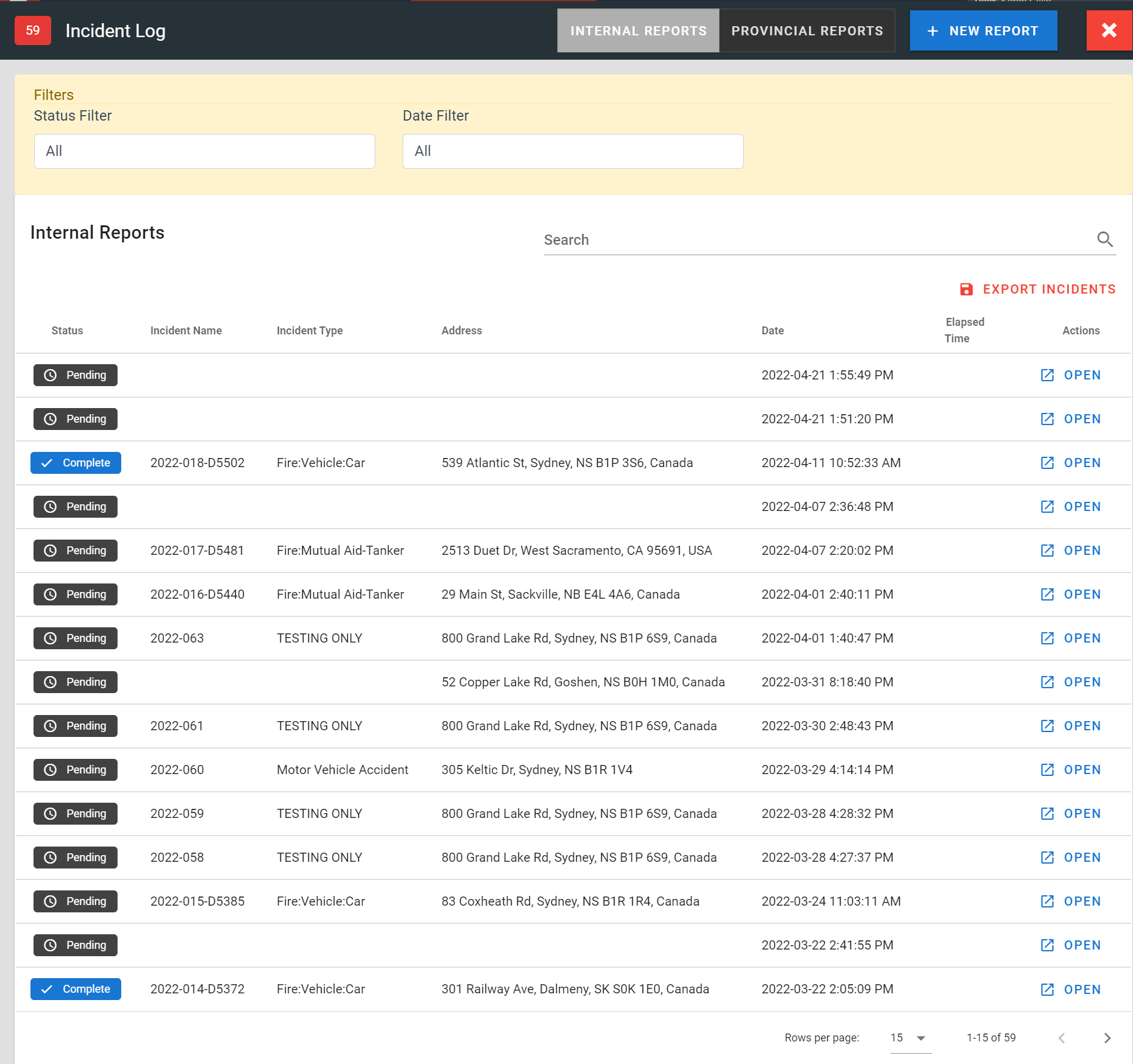
FireQ Incident Log
Click the BENCHMARKS button.
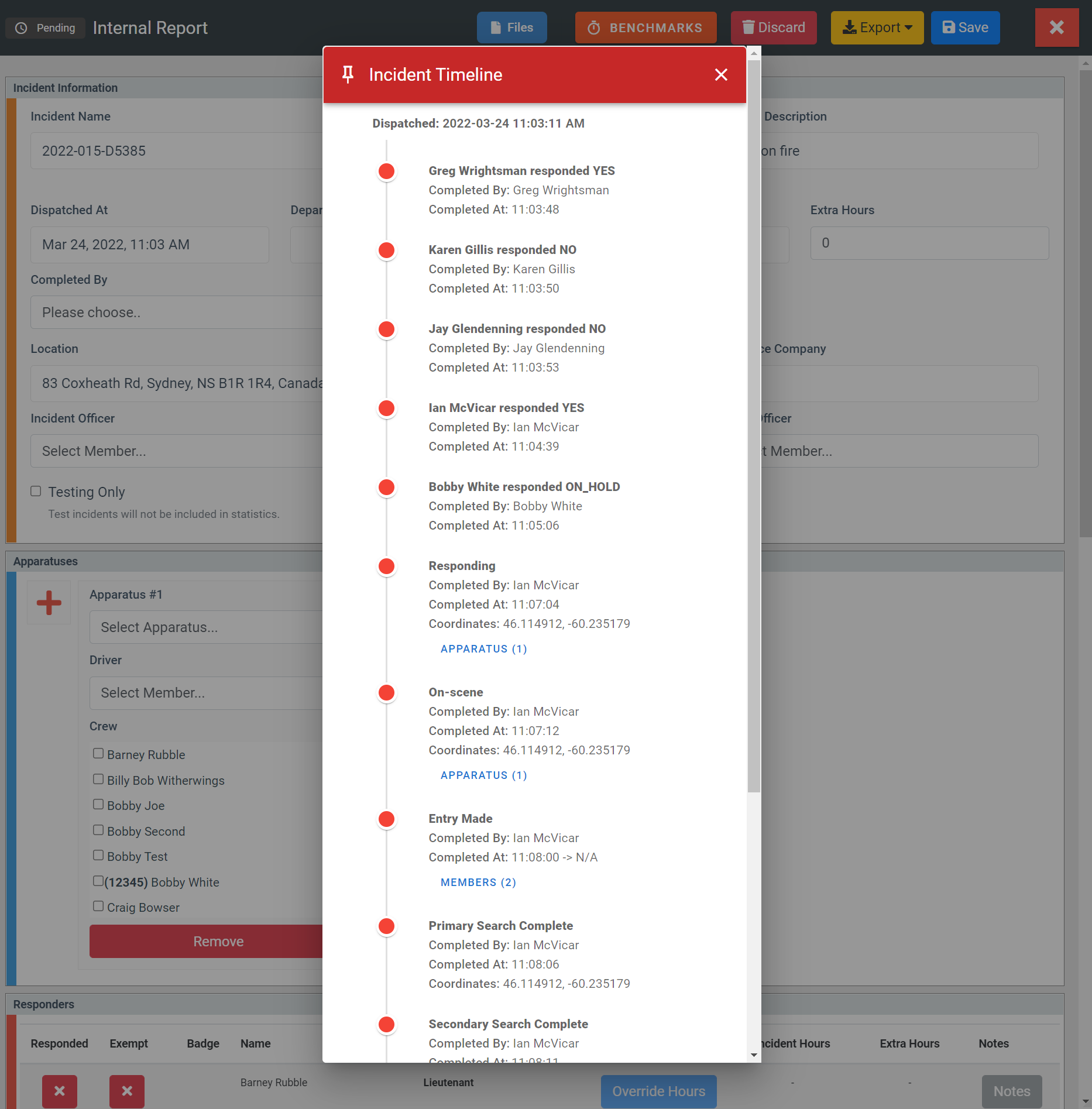
FIreQ Incident Report with Benchmarks