Safety pre-plans & Inspection Reports
Creating safety pre-plans is a powerful tool in the public safety toolbox. Ensuring firefighters have quick and ready access to them is equally important.
The National Fire Protection Association (NFPA) defines a pre-incident plan as “a document developed by gathering general and detailed data that is used by responding personnel in effectively managing emergencies for the protection of occupants, responding personnel, property, and the environment.” (NFPA 1620-2010 Edition). Fire departments across North America receive incident pre-plans from organizations, building owners and safety managers in the communities they serve. These pre-plans and any supplementary information can be stored within FireQ and made available to fighters quickly and easily.
Storage - The standard FireQ annual subscription includes 1G of storage for pre-plans and supporting documents. More storage, if needed, can be purchased.
Adding a Pre-plan
To add a pre-plan, navigate to the LOGS & REPORTS tab and click the PRE-PLANS button.

FireQ pre-incident plans navigation
Enter the details of the pre-incident plan:
-
Name of the pre-plan – this field is required
-
A brief description of the pre-plan
-
Relevant links – this could include such things as a link to Google forms
-
The address – enter the address of the building for which a pre-plan is created. The address information is provided to allow firefighters to easily assess the incident location. Use the location picker to automatically fill in location coordinates.
-
Latitude and longitude – these are required fields. Latitude and longitude are needed to place a pin on the map. The map to the right can be used to find the longitude and latitude. It is important to note that if the address is changed after the map coordinates have been selected, it is necessary to re-select the newly entered coordinates in order to change the map location.
-
Drag and drop a copy of the pre-plan to the upload box.
Click the SAVE button.
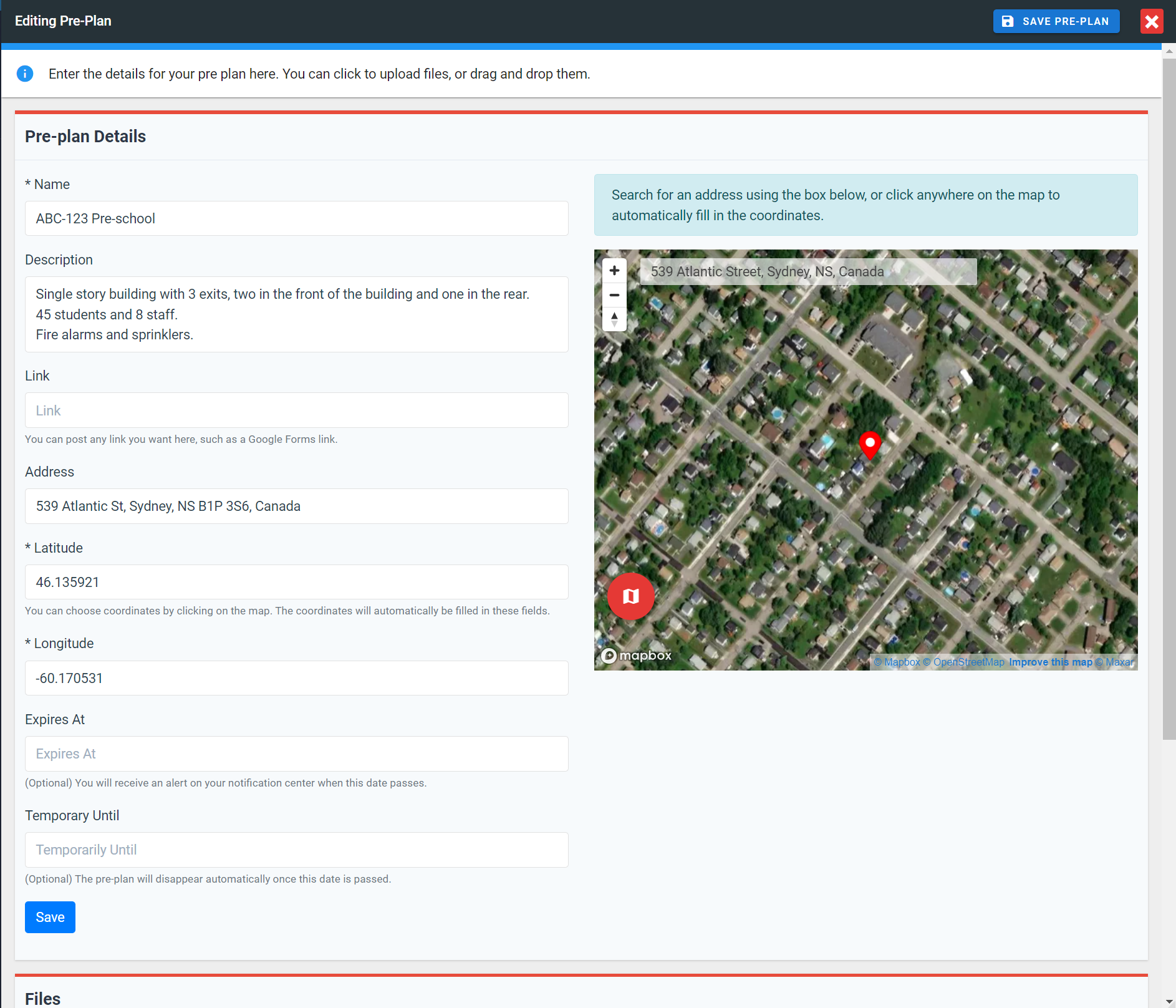
FireQ location picker
Editing an Existing Pre-plan
To edit an existing pre-plan, select the pre-plan that requires editing and click the EDIT button.
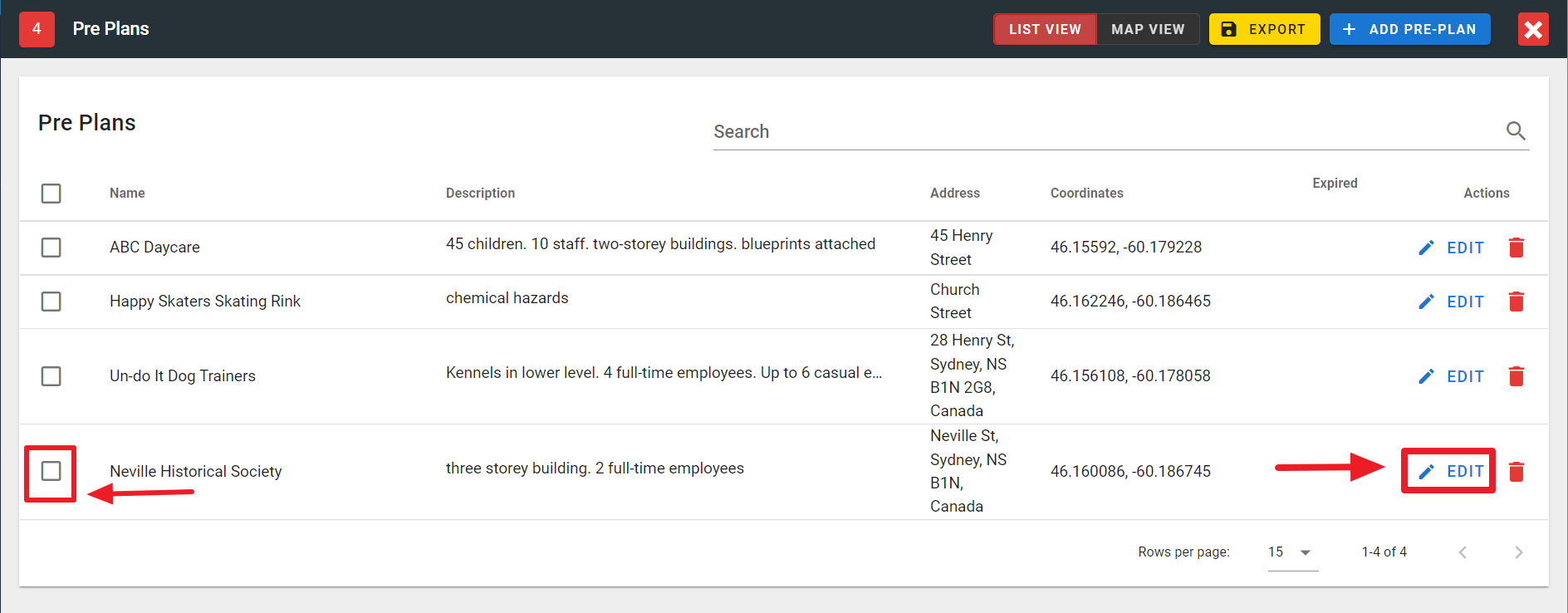
FireQ edit a pre-plan
Make the desired changes and click the SAVE button.
Deleting an Existing Pre-plan
To delete an existing pre-plan, select the pre-plan that requires editing and click the DELETE button.
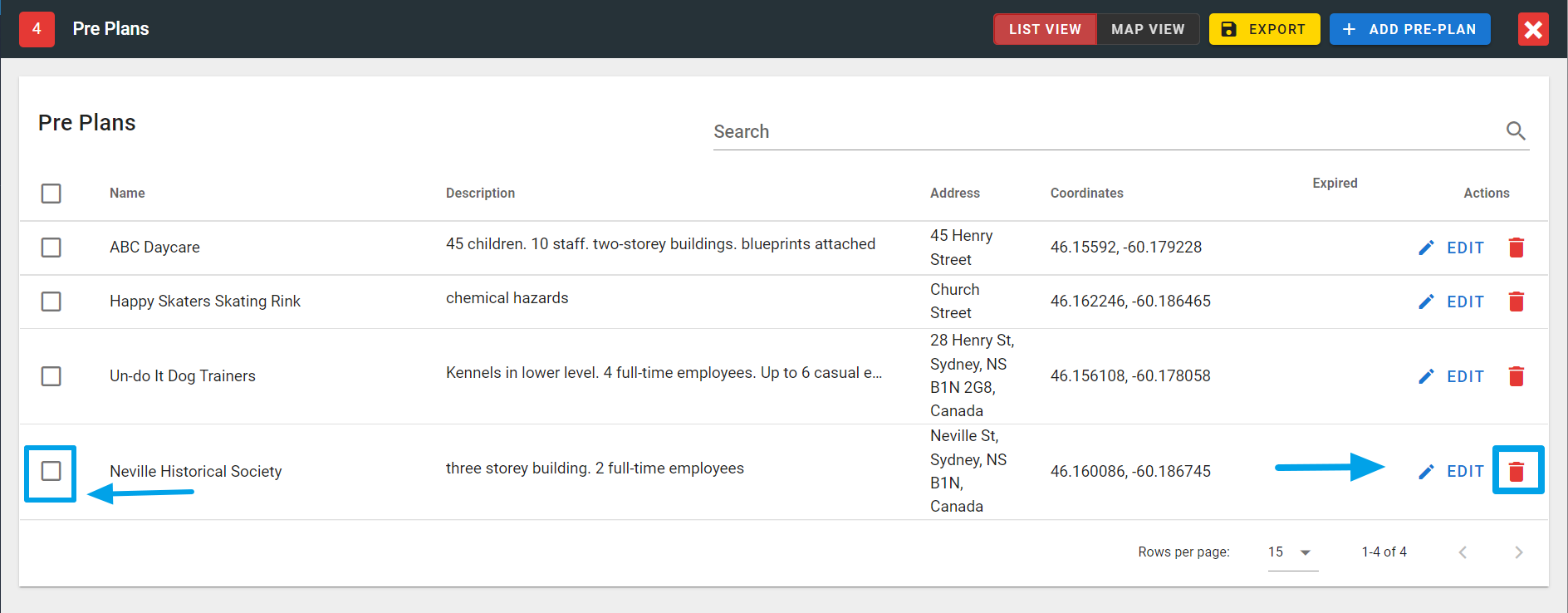
FireQ delete a pre-plan
Uploading Supporting Documents
You can upload supporting documents for each pre-plan. These documents could include such things as building blueprints and contact lists.
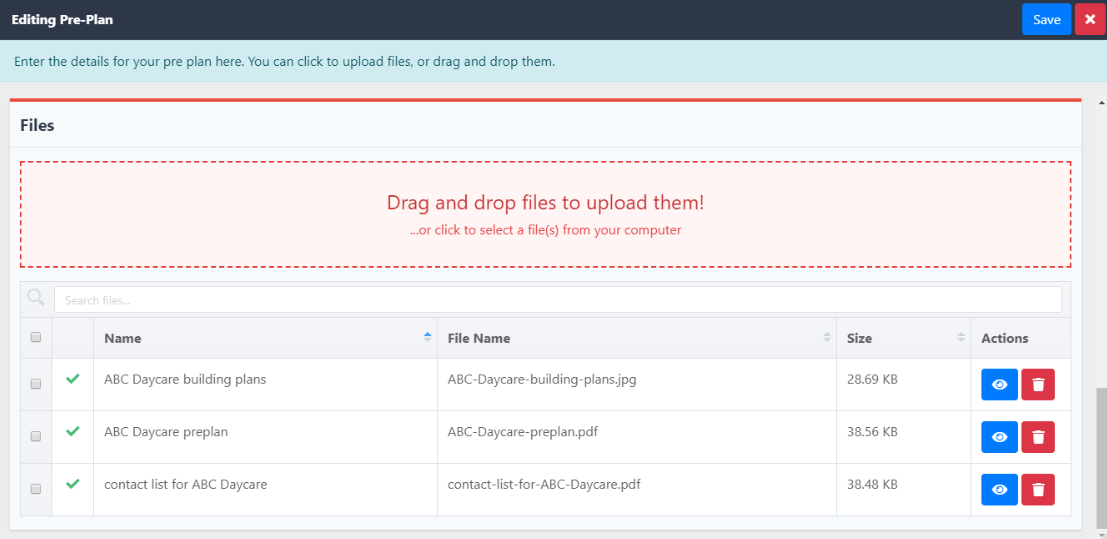
FireQ upload supporting documents
Automatically Creating and Selecting the Map Coordinates for a Pre-Plan
To automatically fill in the coordinates for a pre-plan, enter the address of the building in the pre-plan to bring up the map for that location.
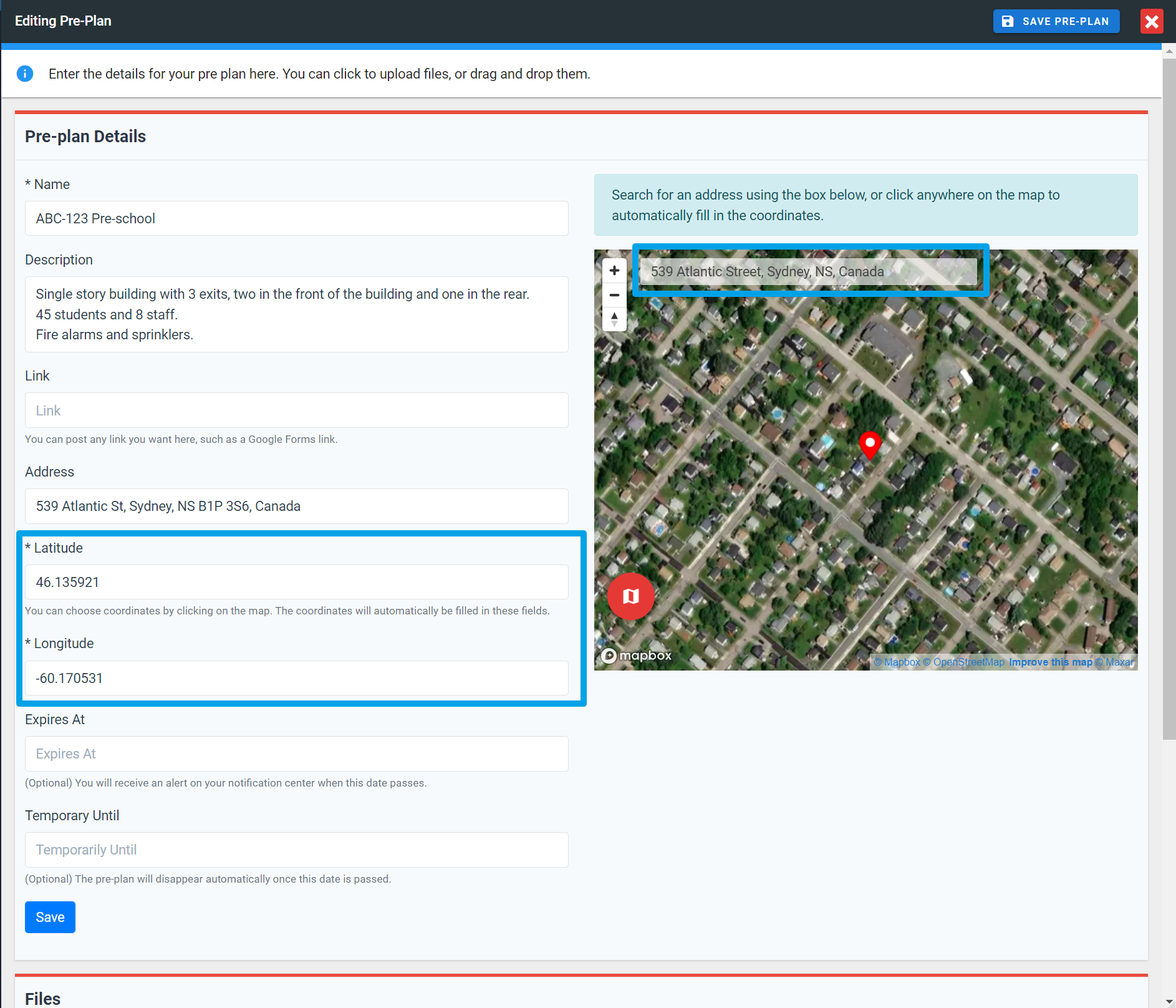
FireQ pre-incident plan find coordinates