Getting Started with FireQ
Firefighters must be added to the FireQ software before they are able to use the FireQ app.
Adding a Firefighter to the FireQ System
Firefighter profiles are created in the FireQ software. There are three steps to adding a new firefighter to your FireQ system:
Creating a Firefighter Profile
To add a new firefighter to your FireQ system, navigate to the MEMBER MANAGEMENT tab and click the EDIT MEMBERS button.

FireQ add a member navigation
Click the ADD button to add a new member.
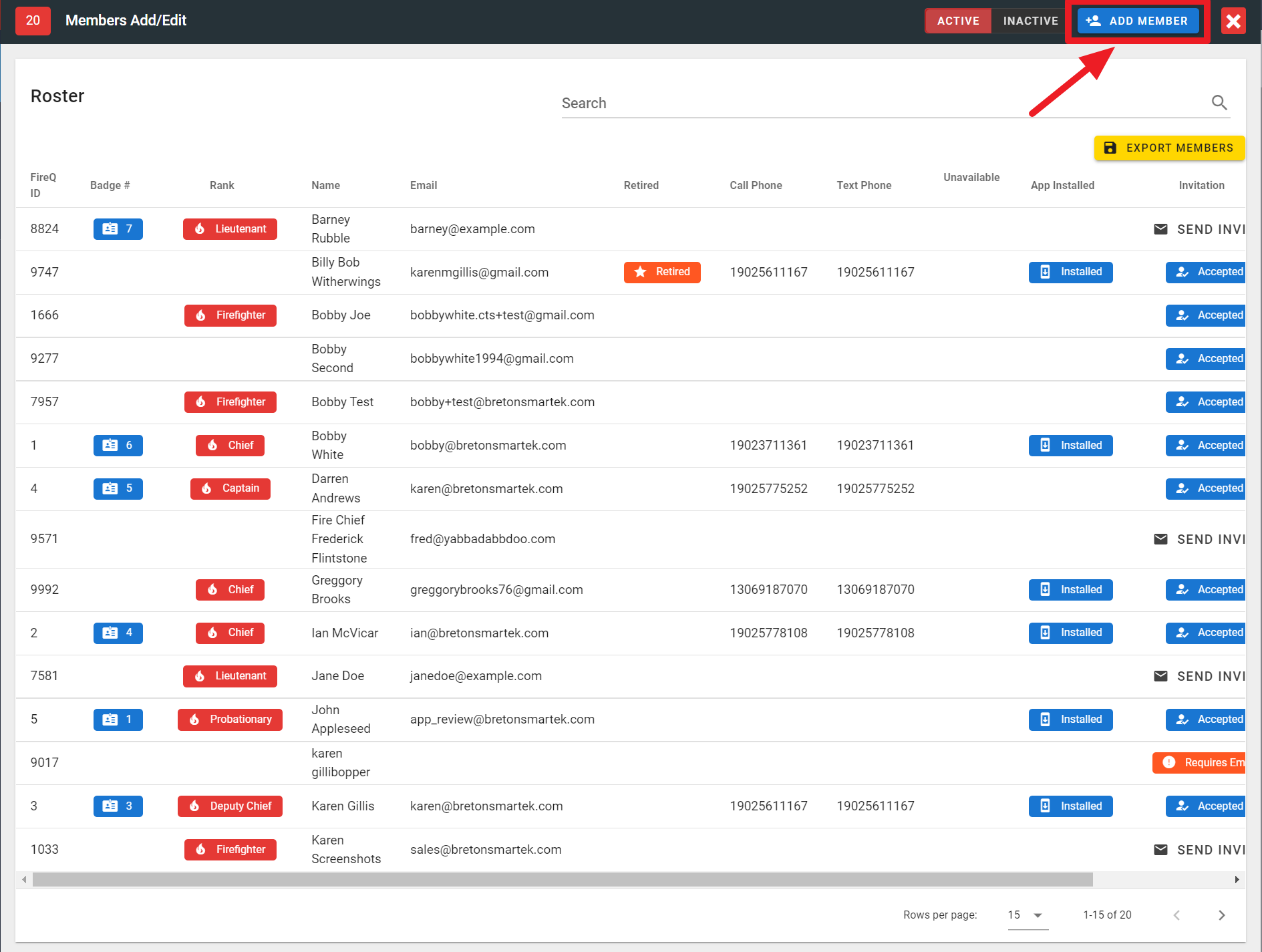
FireQ add a member
FireQ lets you track important firefighter information. To start, enter contact details for the firefighter.
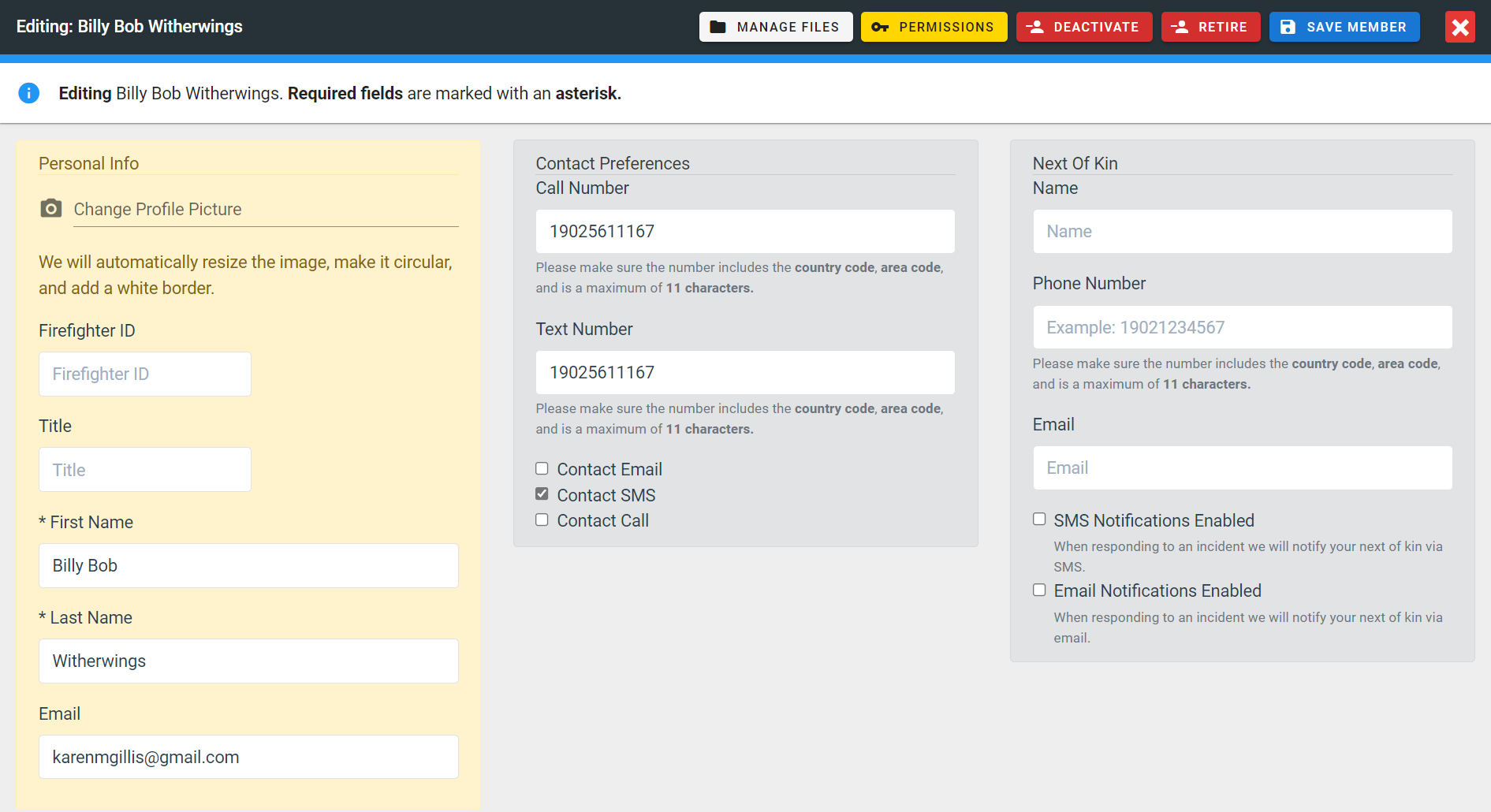
FireQ member list contact details
Firefighter ID - This is not a required field.
Firefighter Title - This is not a required field.
First name – This is a required field.
Last name – This is a required field.
Email – This is only a required field for firefighters who wish to take advantage of all the features offered by FireQ through the FireQ app. When an email address is added, the firefighter receives an invitation via email to complete his profile and set up a secure password.
Call number – This is the number on which telephone calls from the FireQ system will be received. If a call is desired, be sure to place a checkmark in the "Contact Call" box. Firefighters will receive calls even if the FireQ app is not installed.
Text number – This is the number on which texts from the FireQ system will be received. If a text is desired, be sure to place a checkmark in the "Contact SMS" box. Firefighters will receive texts even if the FireQ app is not installed.
Next of Kin - FireQ can send alerts to family members when firefighters are responding to a call. Each firefighter can have one family member that will receive a text and an email when the family member is responding to an emergency. Next-of-kin alerts are ONLY sent when a firefighter uses the FireQ system to respond.
Adding Additional Information to the Firefighter Profile
FireQ also lets you track other important firefighter information. Click the tabs below the contact details window to add:
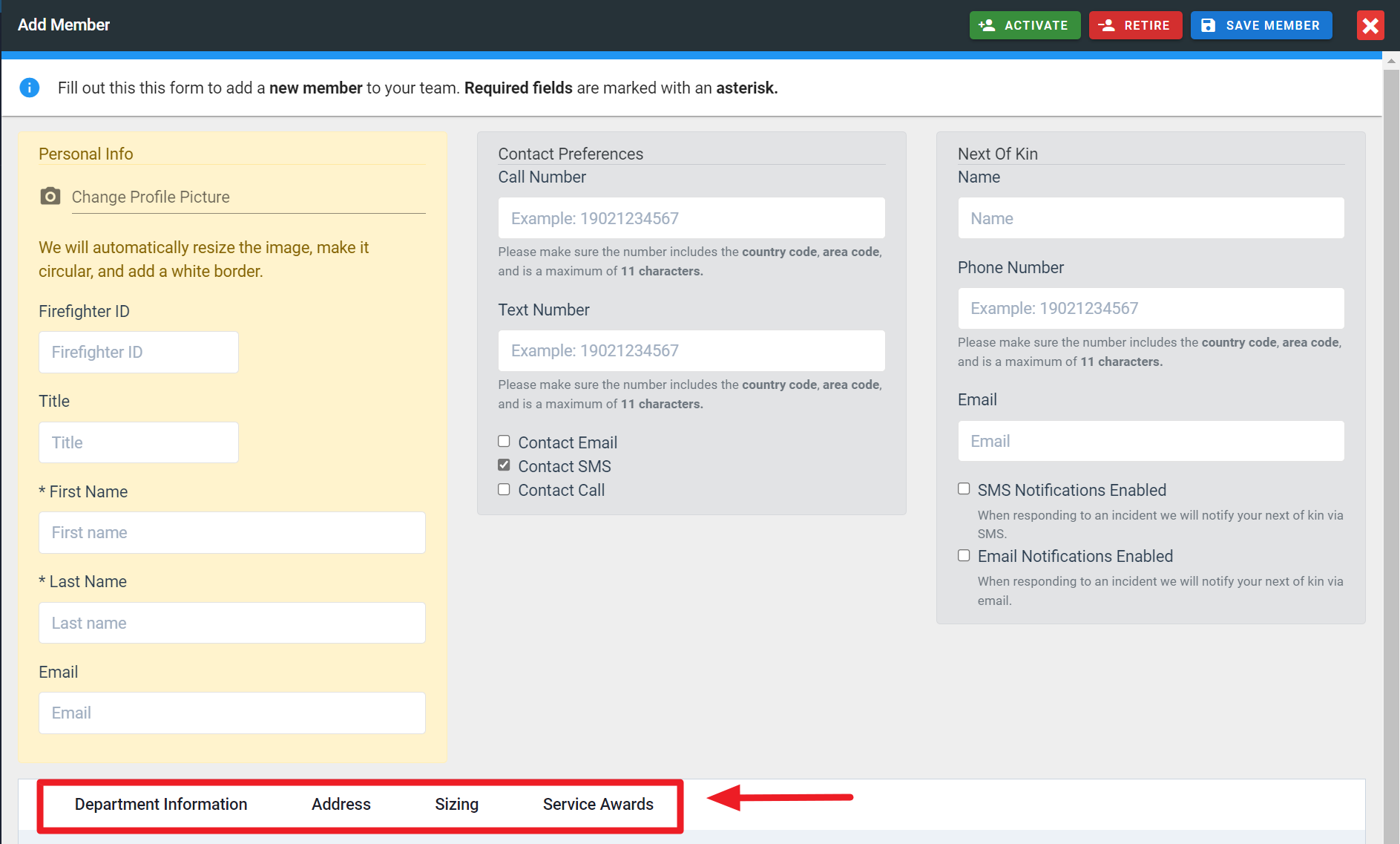
FireQ Member Profile Tabs
Firefighter Profile - Department Information
You can add the following types of department information to a firefighter profile:
-
Enrolment date – This is a required field.
-
Badge number - This is not a required field.
-
Prior Years of Service - You can include years of service from other fire departments.
-
Rank - If you want to the FireQ system to send expiry reminders, you must set a rank in this field. Firefighters with a rank of Captain and above will receive in-app expiry reminders.
-
Qualifications - Qualifications added here appear in the Responders List.
-
Level - Firefighters can be a level one or a level two.
-
Company - You can add firefighters to a specific company. Click here to learn about creating companies in FireQ.
-
Notes - This is a place to record any other details relevant to the firefighter. Individual firefighters cannot see or change information contained here.
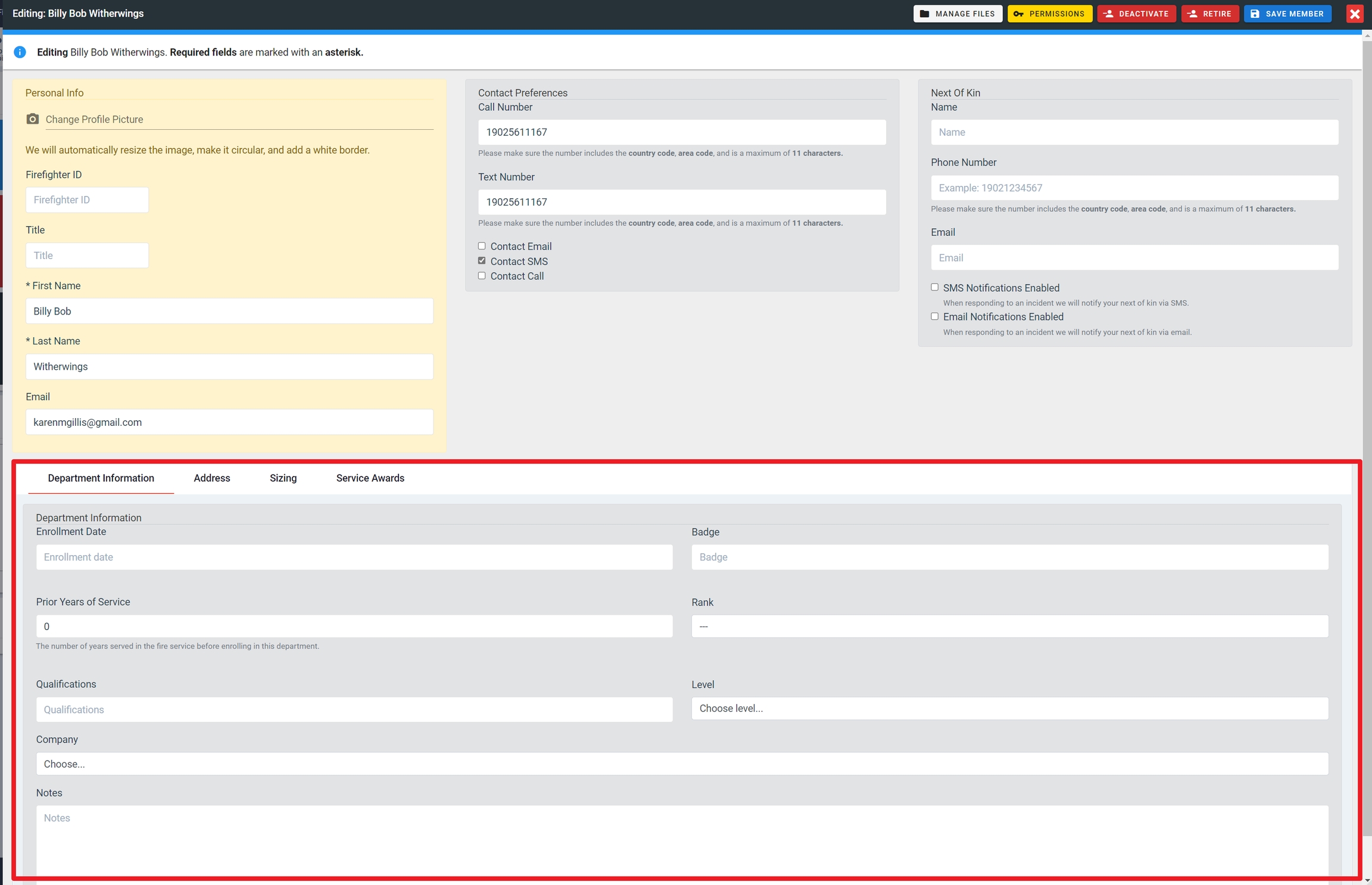
FireQ firefighter profile department information
Firefighter Profile - Address
You can save firefighter address information here.
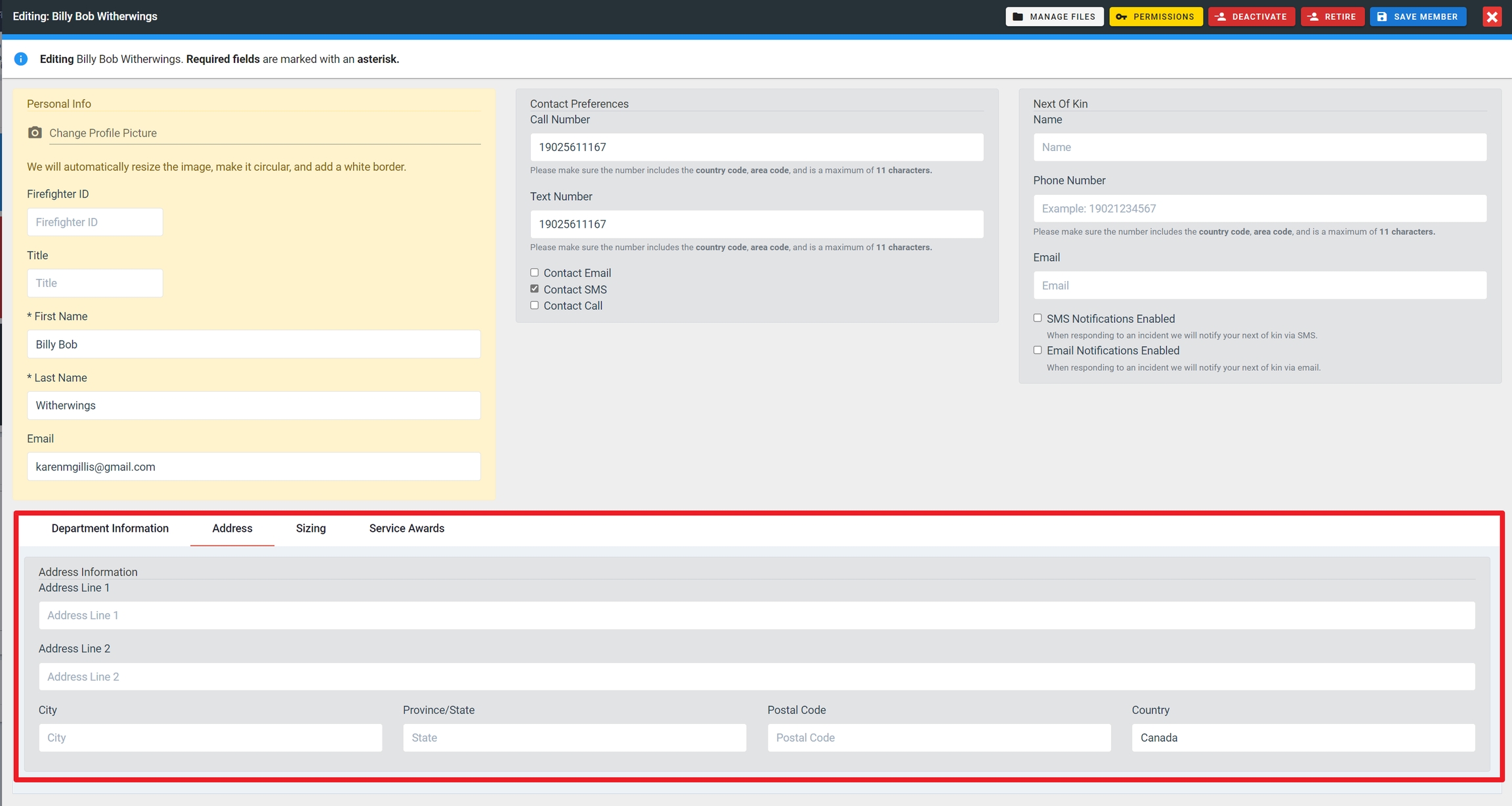
FireQ firefighter profile address
Firefighter Profile - Sizing
You can store the sizes worn by each firefighter to make ordering clothing and boots easier.
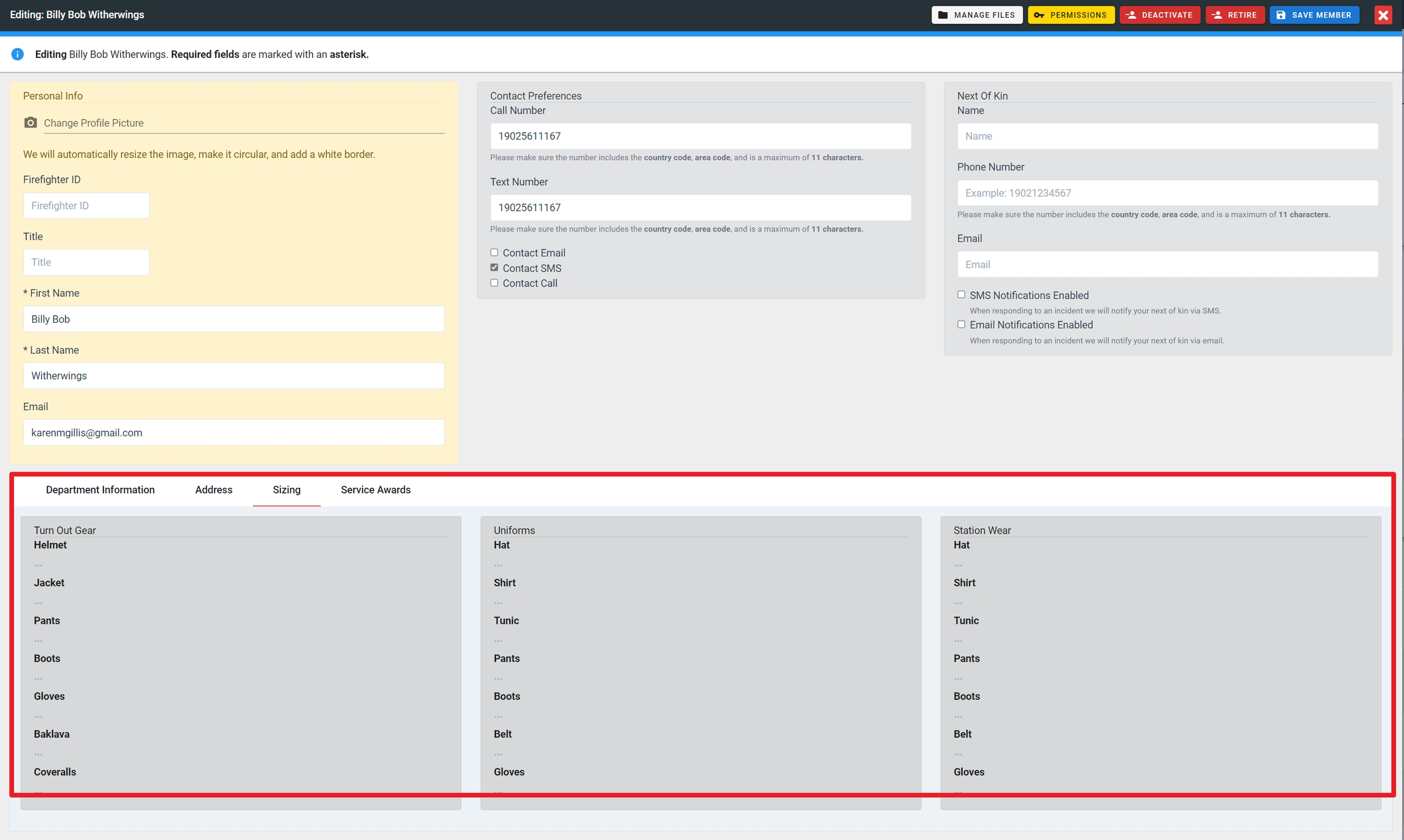
FireQ firefighter profile clothing sizing
Firefighter Profile - Service Awards
You can track any service awards won by each firefighter.
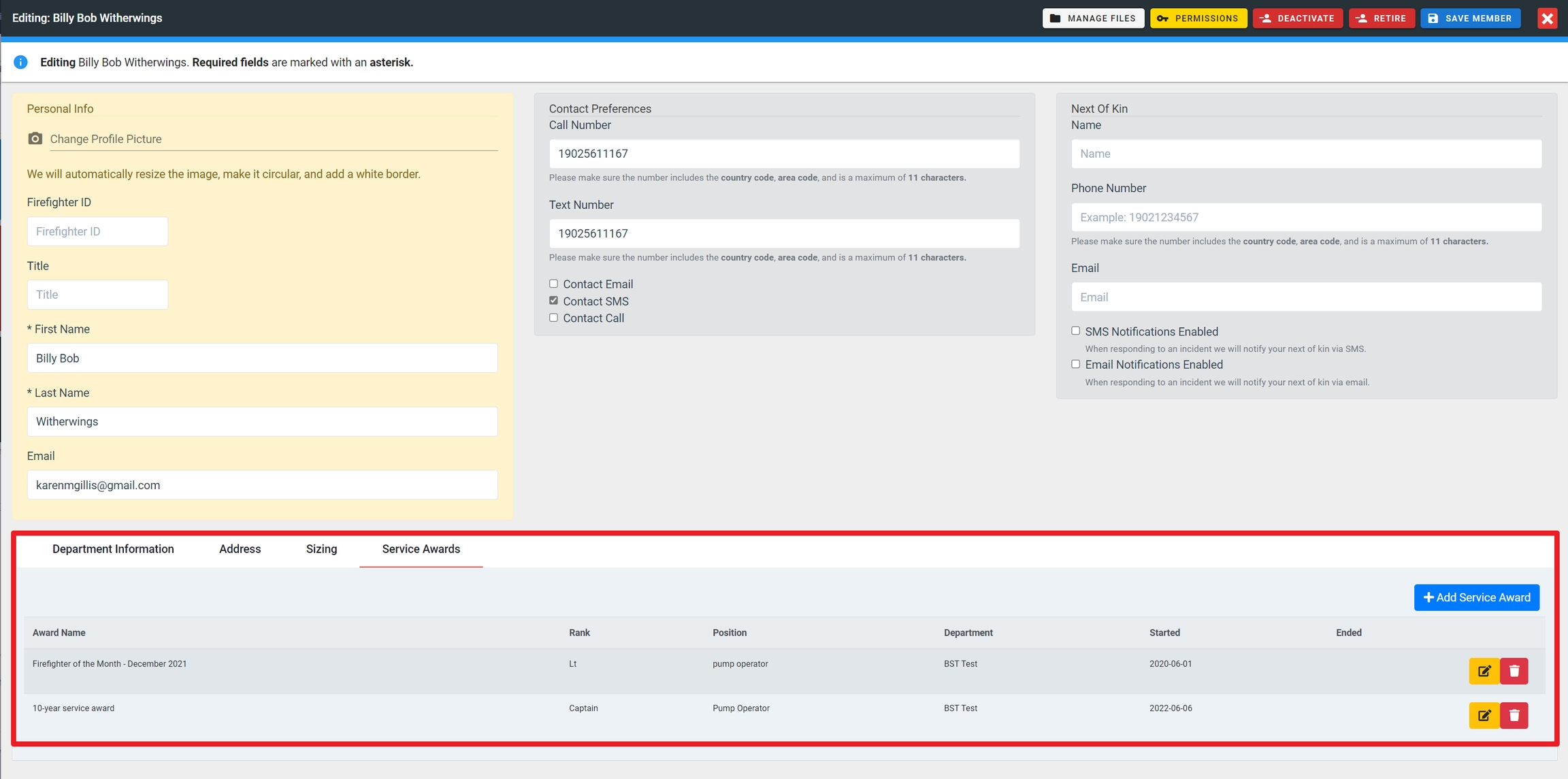
Setting Firefighter Permissions
As soon as you click the SAVE button, the PERMISSIONS window will automatically open. Permissions can be customized for each member or you can select from suggested permissions that are based on rank.
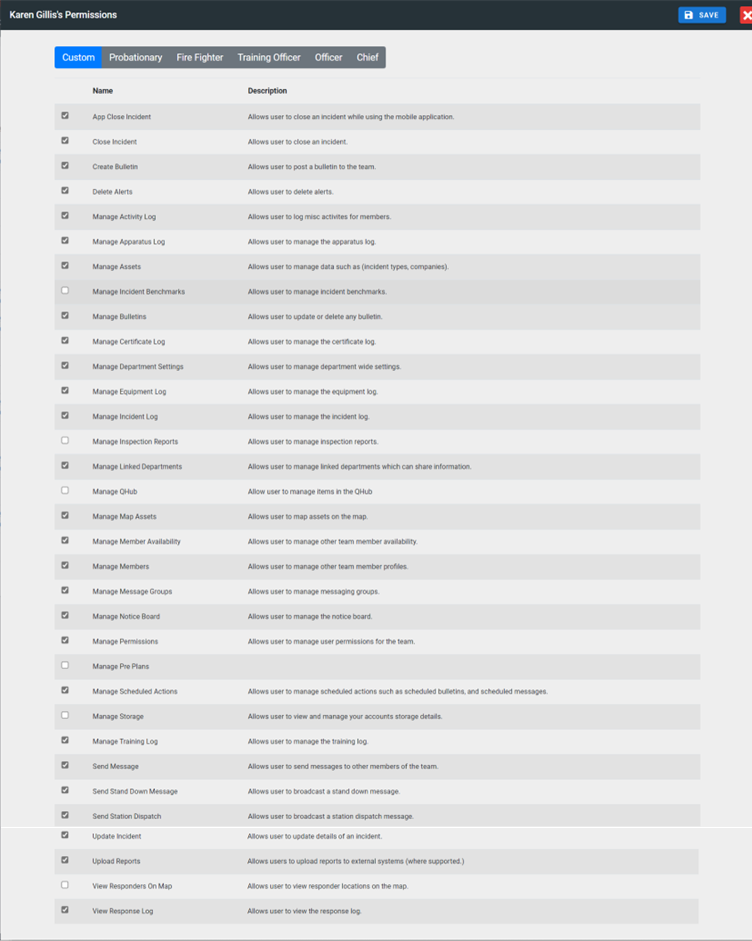
FireQ permissions
Permissions are a critical part of your system security. Permissions should be assigned based on the role the firefighter plays in the fire department.
Sending the FireQ Invitation
Once you add a firefighter to your FireQ system and set their permissions, you can send that firefighter an invitation to download and set up the FireQ smartphone app. Find the firefighter in the list to whom you want to send an invitation and click the “Invite button”. You can see in the member list who has completed their profile set up and who has not. When the firefighter accepts the invitation and sets up login and password, his/her status will say “profile complete”. When the firefighter logs into the FireQ app for the first time, his/her status will say “installed app”.
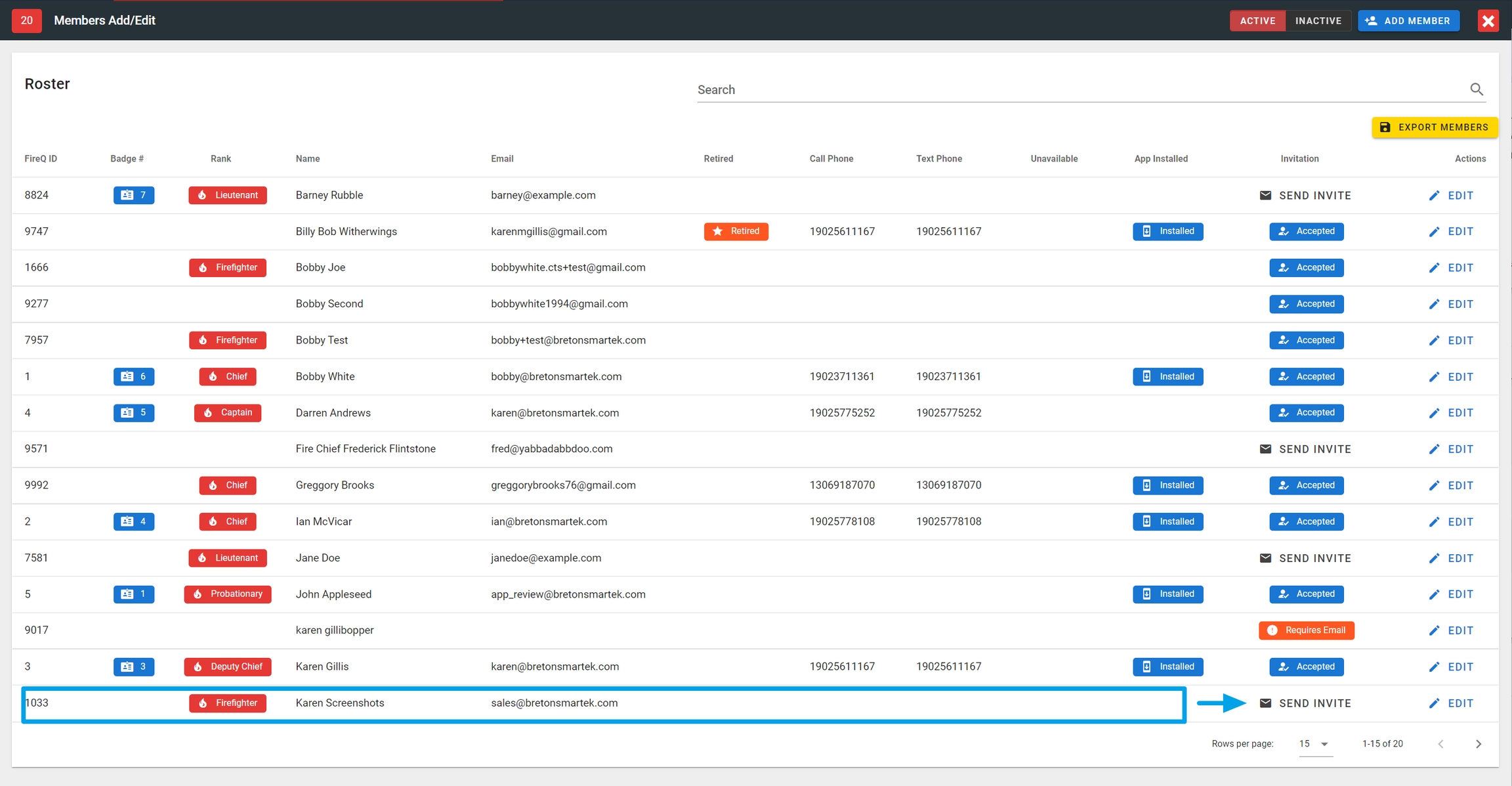
Sending the FireQ invitation
Checking the Status of Firefighter Profiles
After members are invited to set-up a profile in your FireQ system, it is possible for you to see where in the set-up process each member is.
To check the status of any member set-up, navigate to the “Member Management” tab and click the MEMBERS ADD/EDIT button.
FireQ add a member navigation
The member list gives you an at-a-glance look at the set-up status of each member.
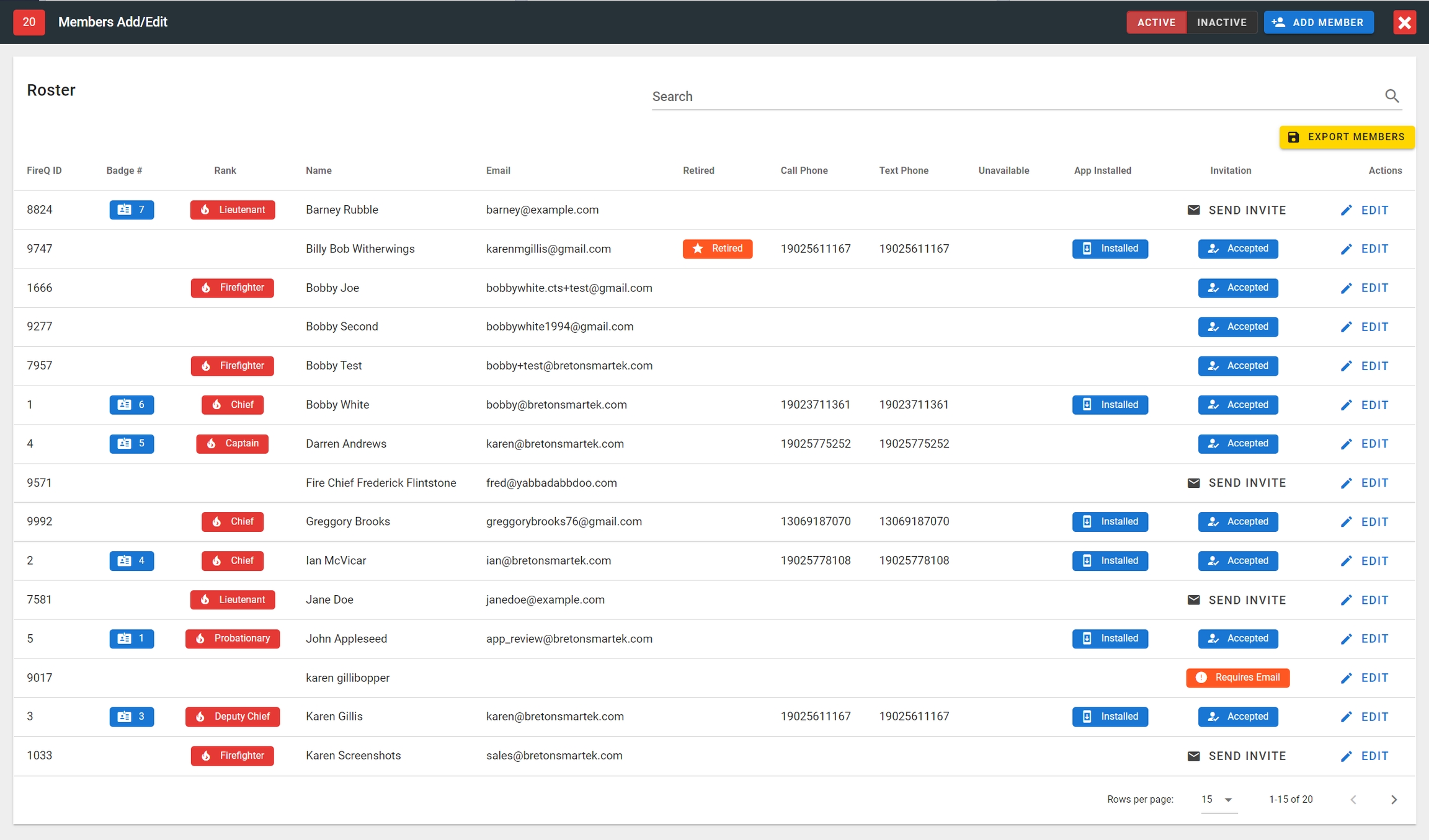
FireQ member list
There are three types of information displayed here for you:
-
The status of members who have completed their profile and have successfully logged into the app appear as “profile complete” and “installed app”. You will not see the “installed app” message until the member has logged into the app for the first time.
-
The status of members who have been invited but have not yet set up a profile appear as “invited”. The invite button remains visible until the profile has been complete.
-
The status of members who have completed their profile but have not yet logged into the app appear as “profile complete”. The invite button is no longer visible because the invitation has been accepted and the profile is complete.

FireQ member list zoomed view
How Firefighters Accept the FireQ Invitation
Installing and setting up the new FIREQ app requires just a few steps after an invitation email is sent. (An invitation email is sent to each firefighter by an administrator of the FIREQ system in your department.)
Using your smartphone, open the email the subject line “Team Invitation”.

FireQ Team Invitation Email
Click the “Accept Invitation” button.
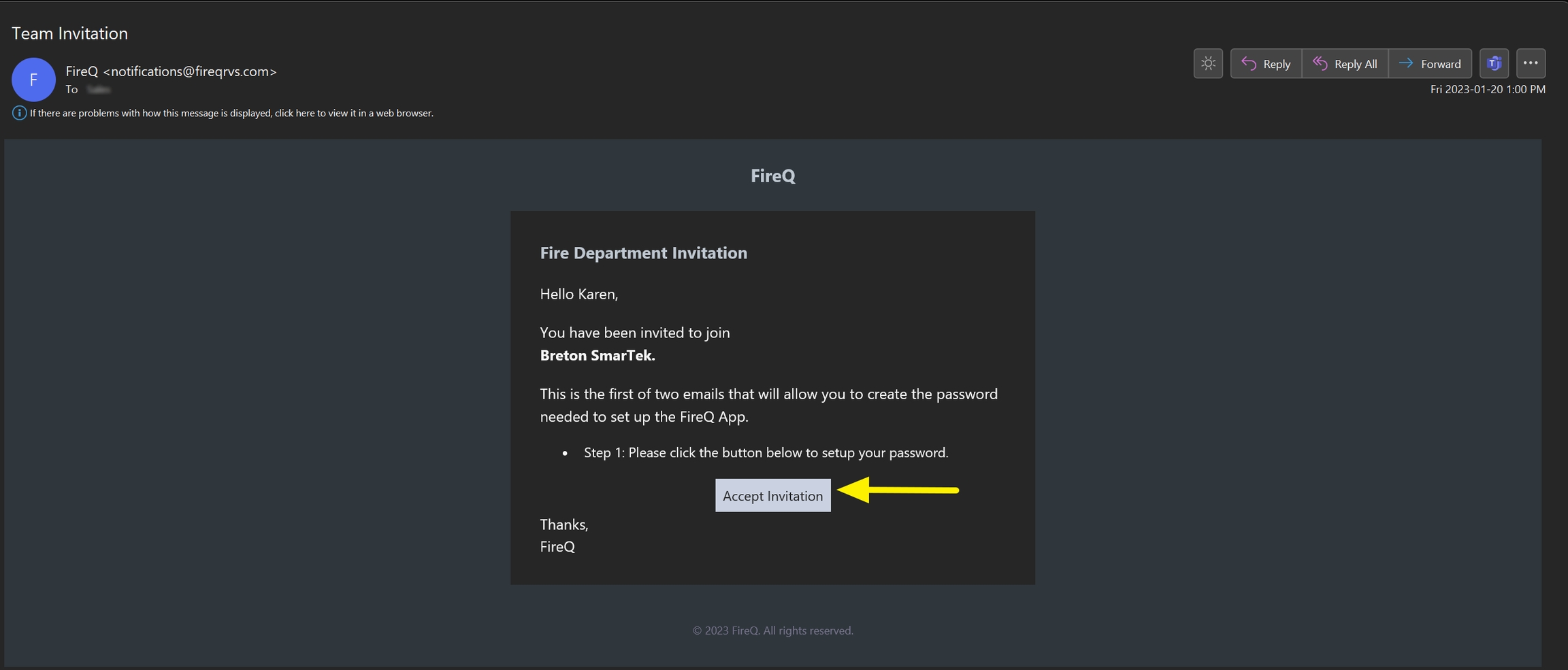
FireQ email accept invitation button
Create a password and enter it in both the password fields. Click the ACCEPT INVITATION button.
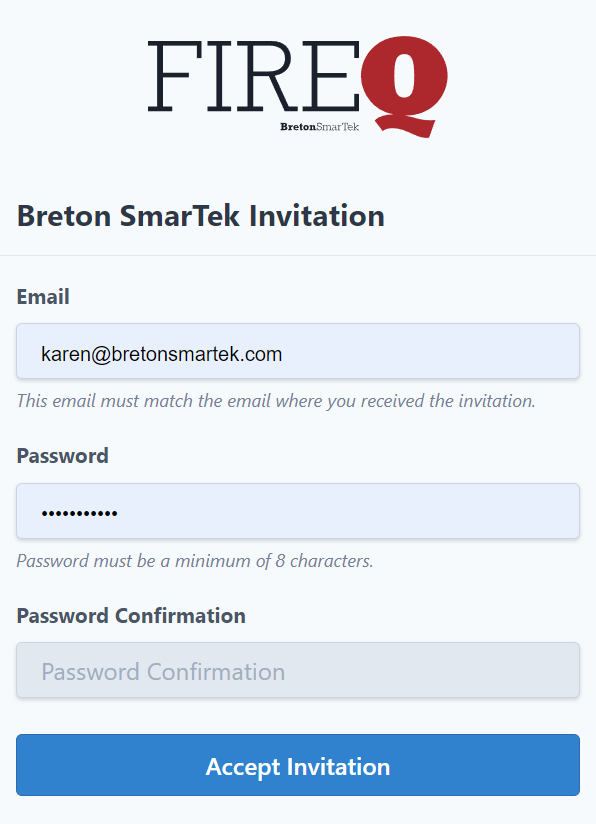
FireQ create a profile screen
You will receive this notification that a second email with the subject line “Invitation Accepted” has been sent.
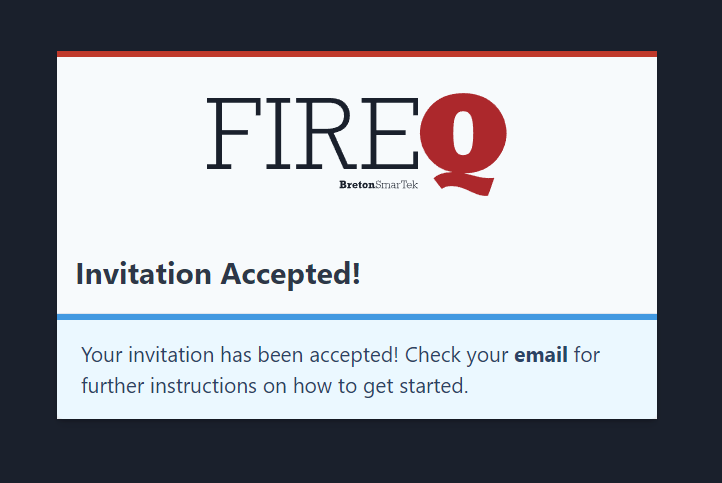
FireQ invitation accepted message
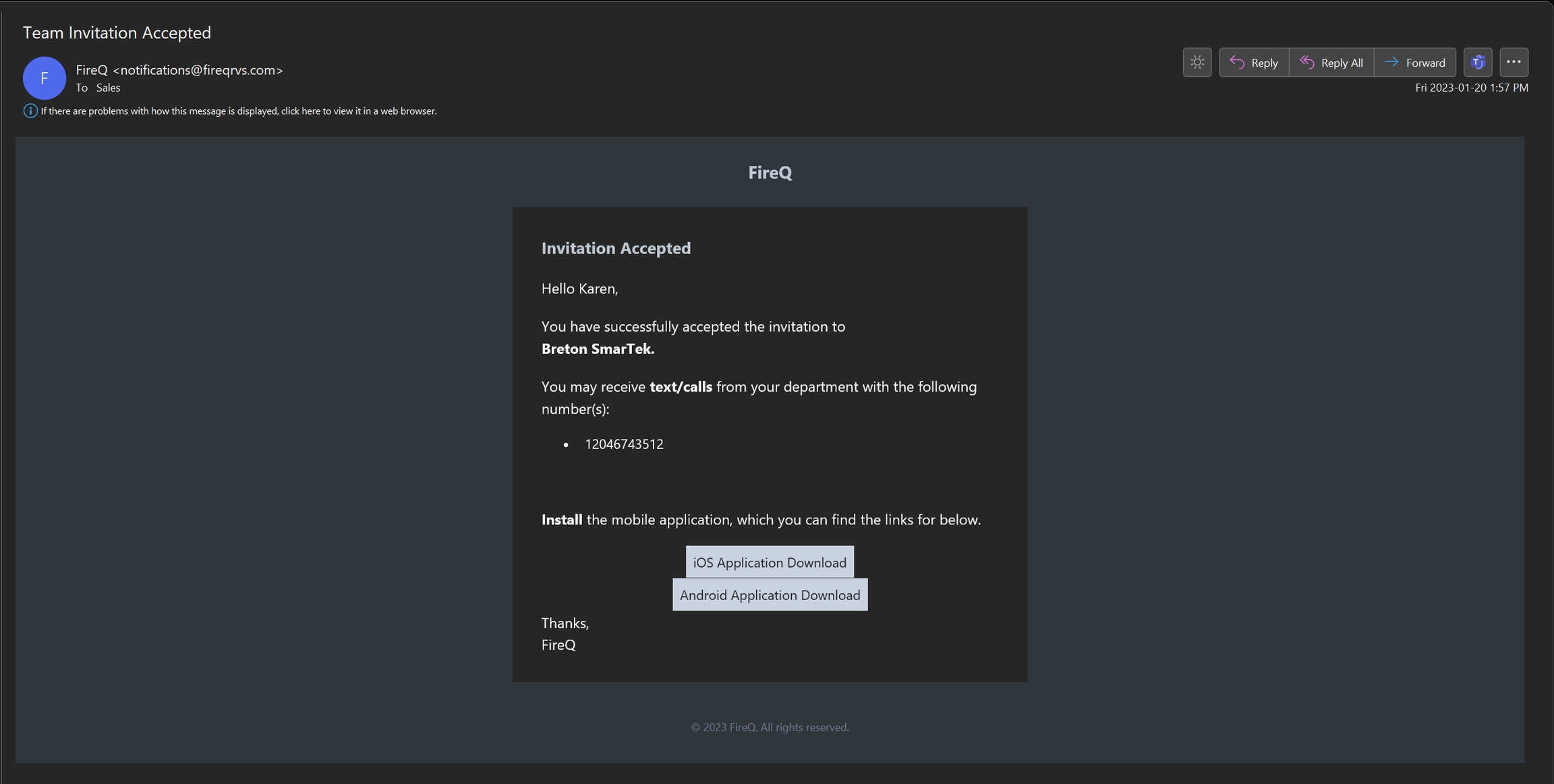
Using your smartphone, open the email with the subject line “Team Invitation Accepted”.

FireQ invitation accepted email
From the email, tap the appropriate link for your smartphone to be directed to the appropriate app store for download.