Setting Up PageQ
What You Need to Run PageQ
-
A radio or scanner that can be connected to the host computer via auxiliary cable.
-
A USB audio adapter to eliminate any Windows-related audio input issues.
-
A location to host PageQ that has good radio reception.
-
A stable internet connection, hard-wired is recommended.
What We Need to Configure Your PageQ
We need the frequency of your pager tones (single or dual tones) and the time duration in seconds of each tone.
Connecting the Input Device (Radio or Scanner)
The first step is to connect a radio or scanner to the computer that is running PageQ. The radio or scanner must be tuned to the frequency (radio channel) over which your pager tones are broadcast.
The radio is connected to the computer via auxiliary cable and is connected to the audio-in port of the USB audio adapter. Once connected, PageQ acts like a pager.
Activating PageQ in the FireQ Software
Navigate to the SETTINGS tab and click the PAGEQ button.

PageQ toolbar navigation
Enter your activation key and click the SUBMIT button.
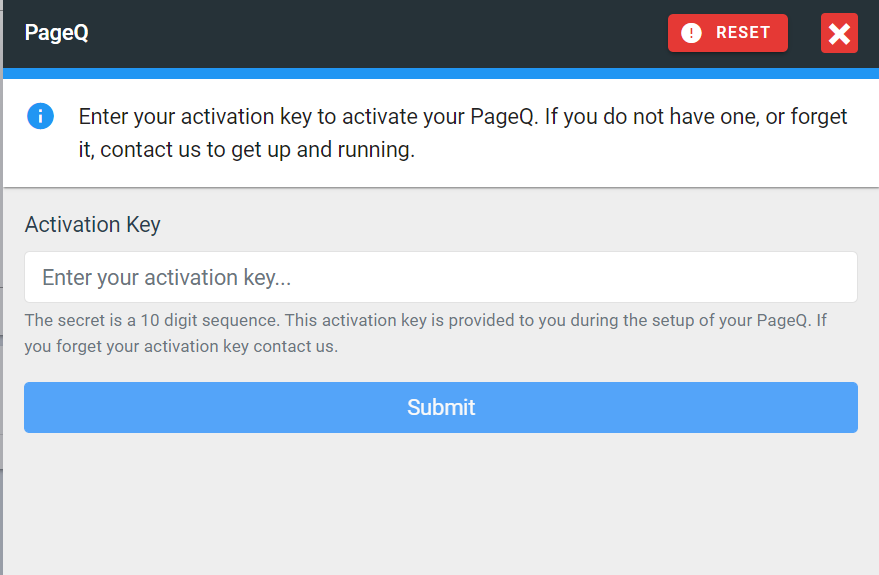
Enter PageQ activation key
If the key is valid, PageQ will open in the bottom left of the FireQ screen.
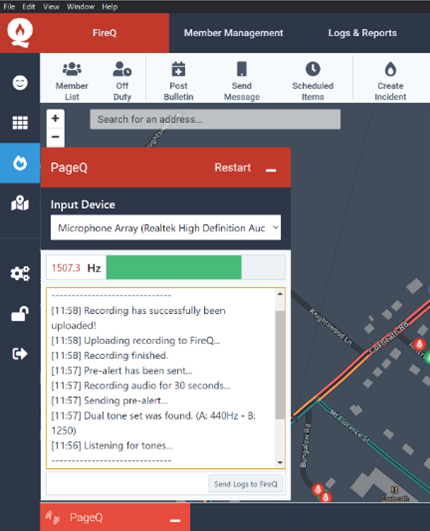
Activated PageQ window
Windows will automatically select the computer’s default input device. The input device may need to be changed if the correct one is not already selected. (The use of a USB sound card adapter simplifies this.)
Important Note about PageQ & Windows
It is important to remember that if the computer that is hosting PageQ goes into sleep mode, PageQ cannot detect the audio alerts. Therefore, to complete PageQ set-up, it necessary to ensure that Windows is set to not allow the hosting computer to go into sleep mode. Navigate to SETTINGS and select SYSTEM. From the menu bar on the left-hand side of the screen, select POWER & SLEEP. Ensure that computer and screen are set to NEVER.
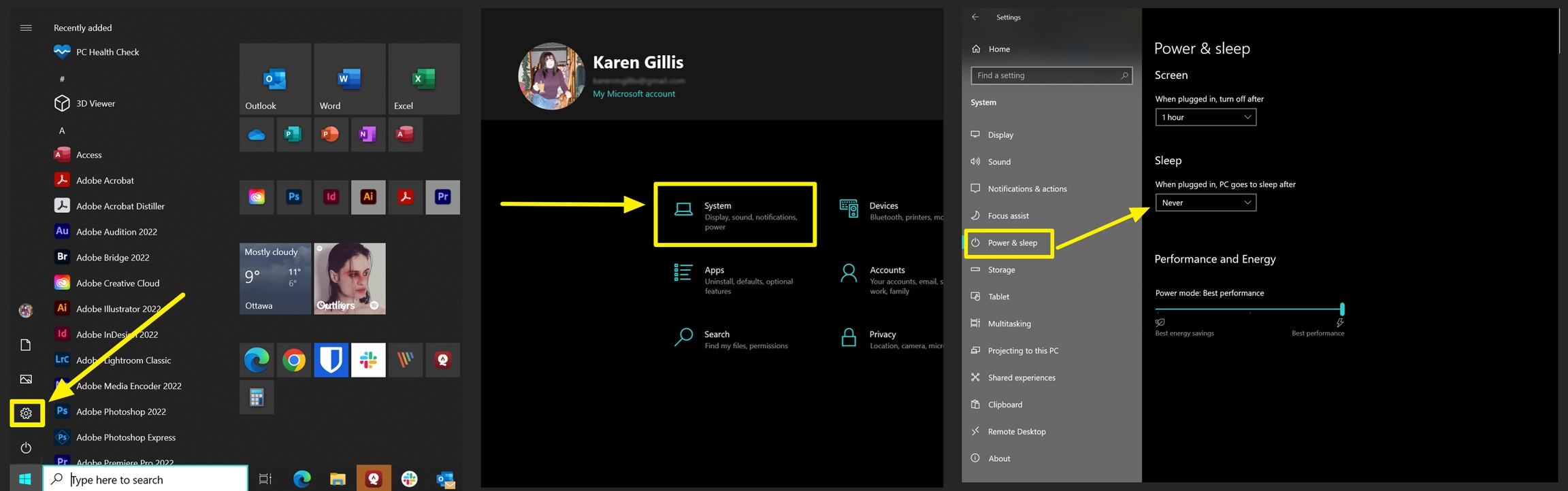
Windows settings for PageQ
Important Reminder: It is very important to note that Windows updates should be performed regularly and scheduled for a time when someone is at the fire hall and can ensure that PageQ is reactivated after the update.
What to Do After PageQ is Activated
Once PageQ has been activated, a simple radio test can confirm that PageQ is hearing the necessary radio traffic. Use any radio connected to the proper channel for a radio test. The green bar should move with the voice traffic.
At this point, it is recommended that a pager test be conducted. Users should be able to see the tone being detected and recorded as seen below.
Live PageQ Window
Reading Your PageQ
The PageQ application window can provide a lot of valuable information about PageQ is doing. From this window, you can see things like:
-
PageQ is listening for tones.
-
The input device is initializing.
-
Tone configuration is initializing.
-
Tones found.
-
Tones have been detected.
-
Recording successfully uploaded.
-
Alerts have been sent.
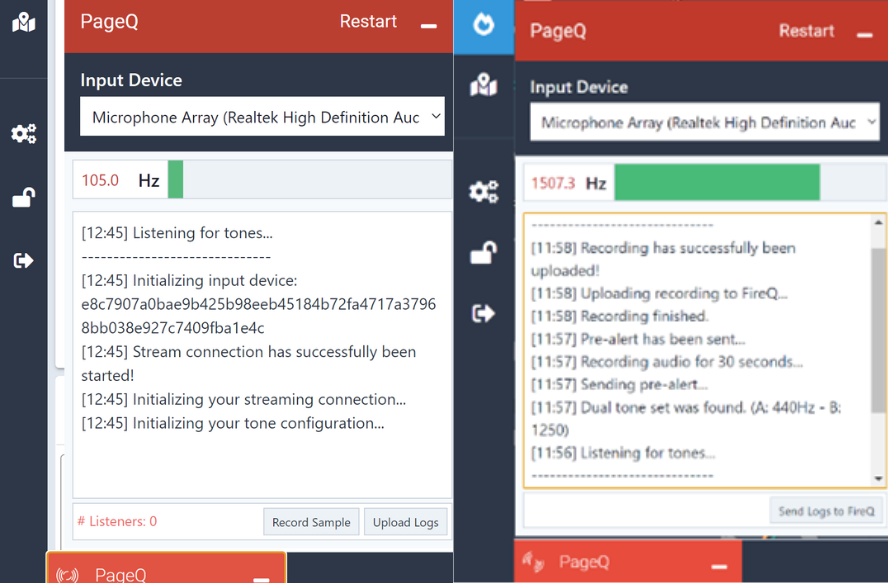
Text that is visible in the PageQ window
Troubleshooting PageQ
If PageQ is “listening for tones” but does not activate a recording when your tones are heard, there are two possible reasons:
-
PageQ did not hear the specific tones we have configured for your department and the tones need to be adjusted.
-
PageQ is not hearing/receiving any audio from the radio or scanner.
To confirm that we have the right pager tones, you can record your tones directly from the PageQ application.
Request a test page and then click the RECORD SAMPLE button in the lower left corner of the PageQ window.
PageQ will record everything it hears for 180 seconds and automatically upload the recording to us. We will use the recording to determine that the transmission was heard by PageQ, as well as use it to configure your tones. You will be notified by email when this is complete.
Any time a change is made in the configuration of your PageQ, you must RESTART the PageQ application to “fetch” the new configuration changes.
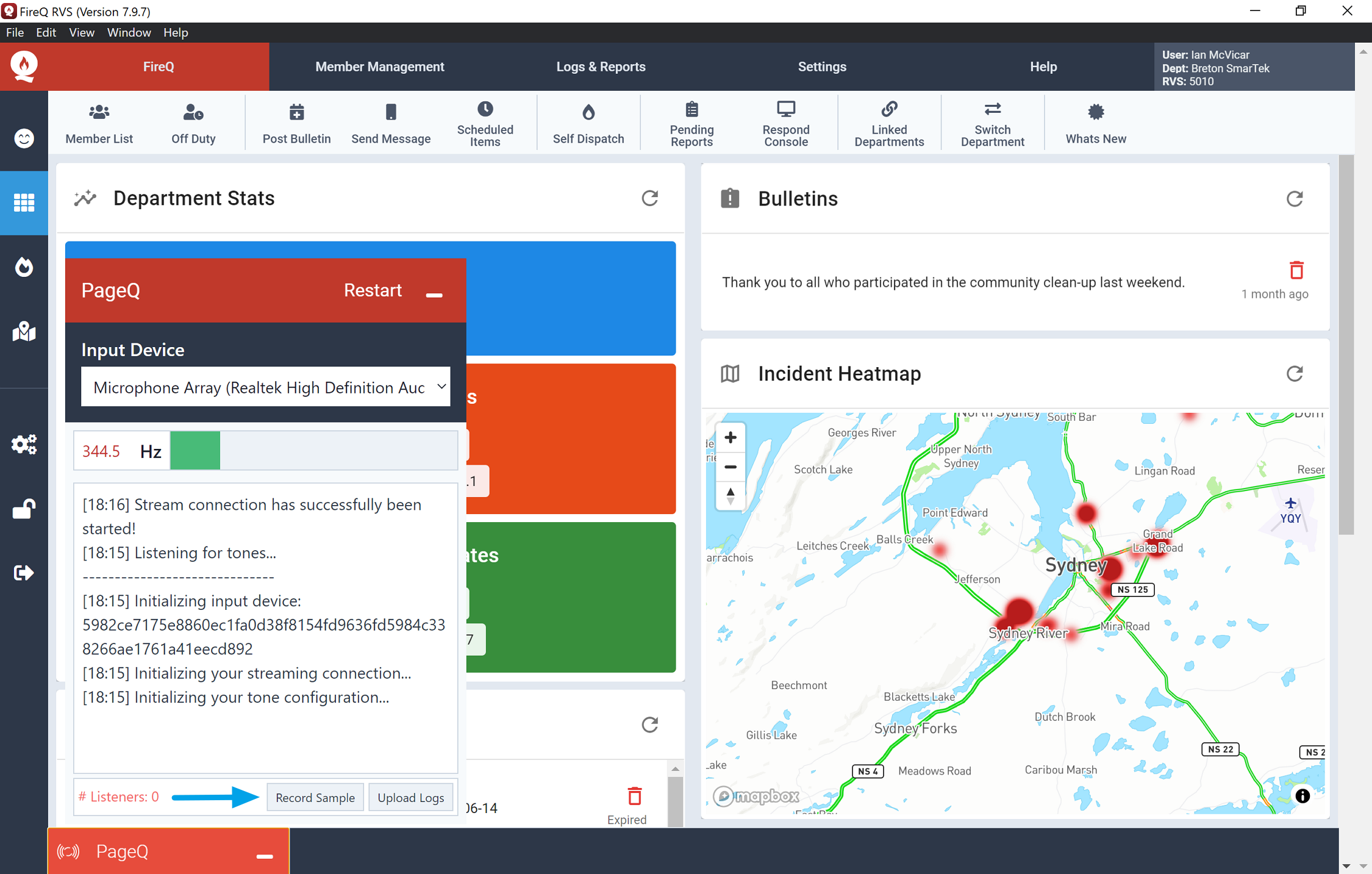
PageQ record sample tones
PageQ Tips
-
It is important that only one computer host the PageQ application.
-
The quality of PageQ audio alerts is dependent upon the quality of the incoming audio. It is important to place radio and PageQ in a place where you have good radio reception. Things like the volume setting on the radio can affect audio quality. We recommend you begin at 50% and adjust up or down accordingly based on your first test.
-
Good maintenance practices help to ensure that PageQ remains operational. The computer hosting PageQ should be rebooted at least once a week and Windows updates should be installed regularly.
-
The PageQ application includes a “heartbeat” feature that monitors its operational status. If your PageQ becomes unresponsive, email alerts are sent to firefighters designated by the department.
-
This is a video recording of a typical PageQ set-up in the radio room of a fire station.
Video recording of a typical PageQ set-up