Responding from the App
Firefighters who respond with FireQ are letting their fellow firefighters know that they are responding, as well as their distance and when they will arrive.
Why You Should Respond with FireQ
When you respond using FireQ, your name is automatically added to the Responders List which is visible to all members of the fire department. Letting your fellow firefighters know you are responding ensures your visibility when you are traveling to the fire station.
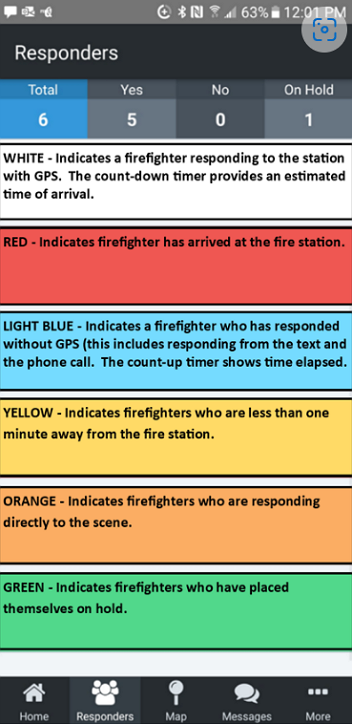
FireQ Responders List Colour Code Legend
The FireQ app provides firefighters with more than one way to respond. Regardless of how they respond, firefighter names appear in the Responders List. Firefighters can:
-
Respond directly to phone call.
-
Respond directly to the text.
-
Respond using the FireQ app.
Responding to the Phone Call
You can opt to receive a phone call alert from FireQ. When the call is answered, you will hear a recording of the original page from dispatch and respond directly using the number pad on your phone.
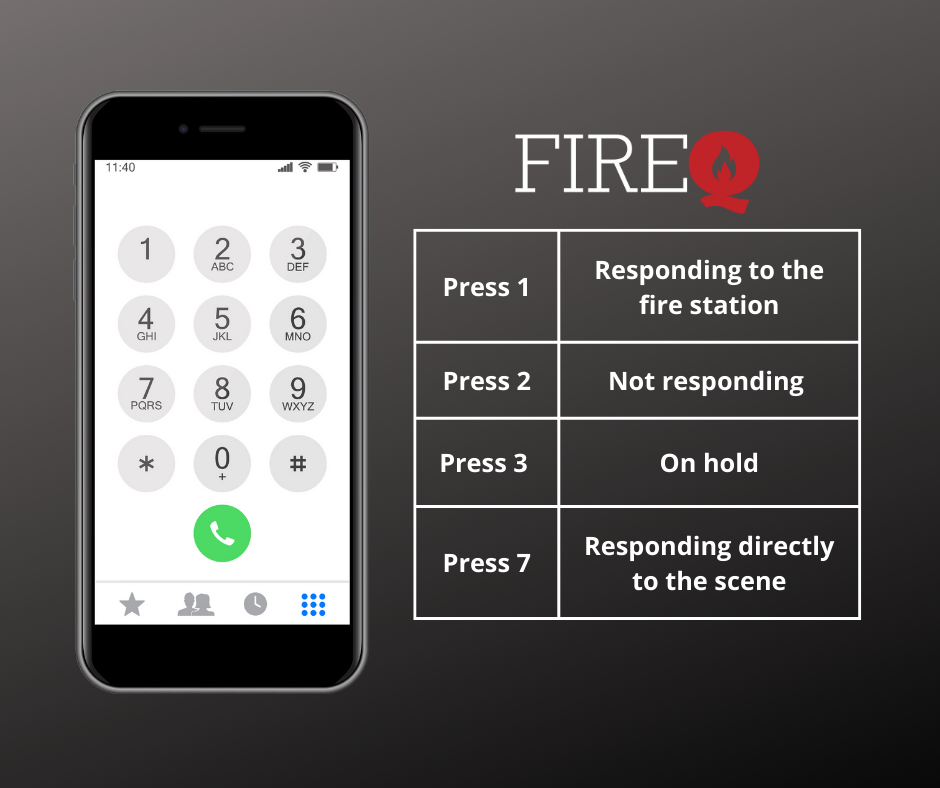
Responding to the FireQ phone call
Responding to a Text
Your FireQ has a unique and dedicated phone number so all texts and calls you receive will always come from the same number. To respond to a emergency alert received by text, respond to the text with "yes", "no", "scene" or "hold" to respond.
It is important to note that these 4 responses are the only responses that are recorded by the FireQ system.
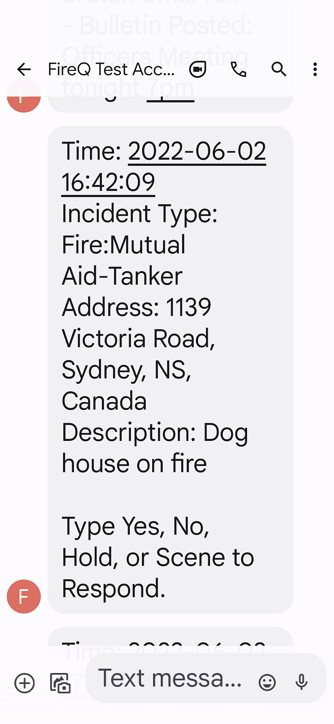
FireQ text alert
To help you quickly recognize a FireQ call or text, add FireQ to your contacts using the phone number assigned to your department's FireQ system.
Responding Using the FireQ App
From the FireQ app, you have several options to respond:
-
Tap the RESPOND button if you are going to respond to the fire station. FireQ calculates your distance to the fire station and provides an estimated time of your arrival at the station. Your name appears in the RESPONDERS LIST with a count-down timer to show your time of arrival.
-
Tap the RESPOND TO SCENE button if you are going directly to the location of the incident. FireQ records the time you responded to the incident and your name appears in the RESPONDERS LIST with a count-up time to show how long it has been since you indicated your ability to go directly to the scene.
-
Tape NO if you are not ale to attend the incident.
-
Tap ON HOLD if you cannot respond right away but may be able to respond later.
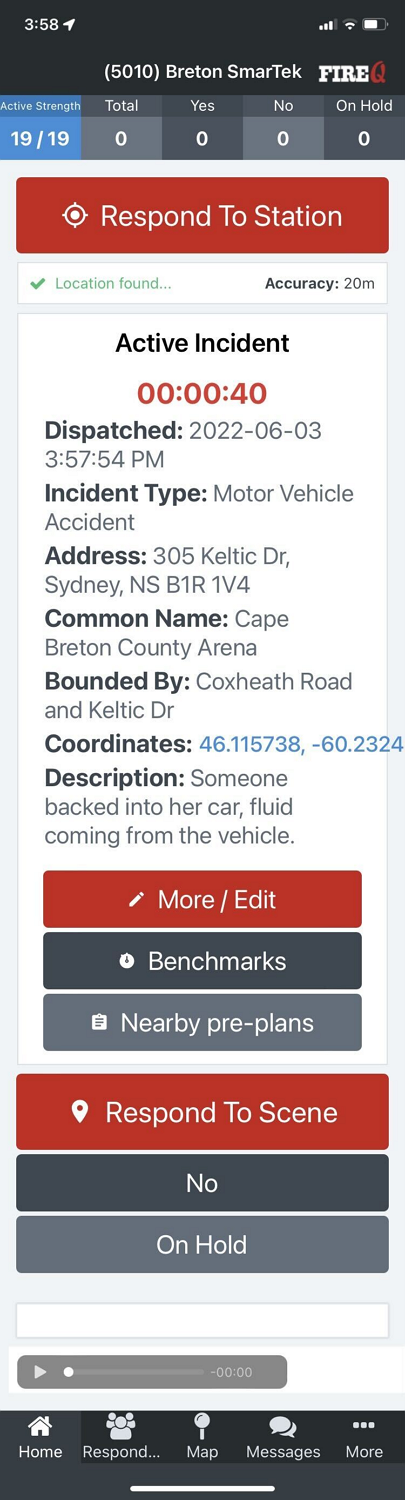
FireQ active incident
The Responders List
You can see the Responders List from the FireQ app. Click the RESPONDERS TAB.
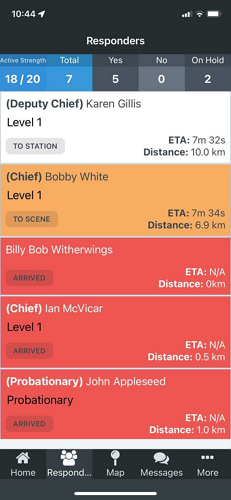
FireQ Responders List App View