Benchmarks
To see a list of benchmarks automatically included in FireQ, navigate to the LOGS & REPORTS tab and click the BENCHMARK button.
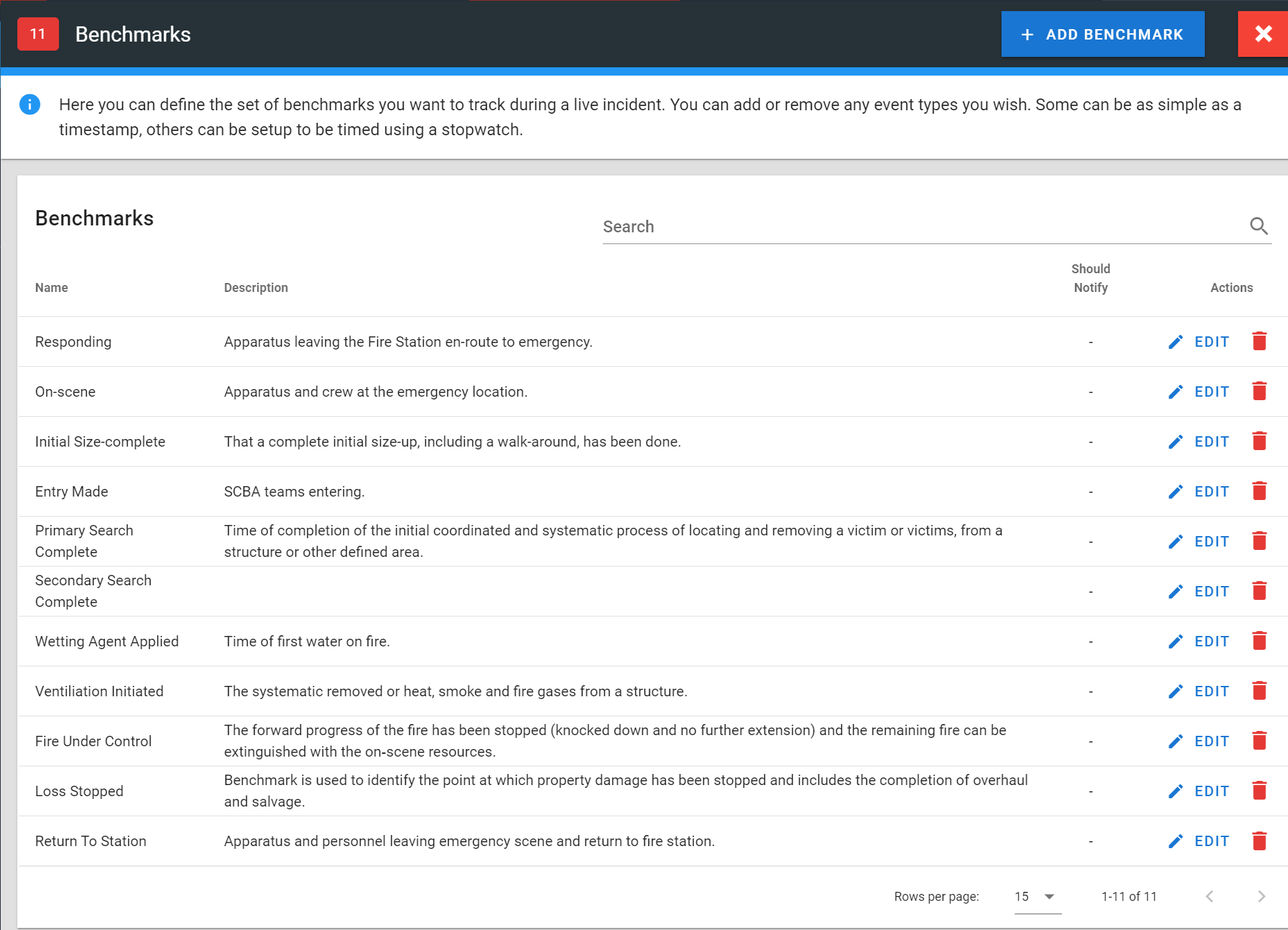
FireQ benchmarks list
Adding Your Own Benchmarks to FireQ
To add your benchmark to FireQ, click the ADD BENCHMARK button and complete the following steps:
-
Give the benchmark a name and description. This is important as benchmarks could be part of the official record of the emergency incident.
-
Select a colour for the benchmark. This allows for easy visual distinction.
-
Place a checkmark if you want the ability to add a particular apparatus to the benchmark. The on-scene benchmark, for example, includes the ability to tag an apparatus so that you can record which piece of apparatus arrived on scene and when.
-
Place a checkmark in the box next to "Should Tag Members" if you want the ability to add specific firefighters to the benchmark.
-
Place a checkmark in the box next to "Should Notify" if you want to notify specific personnel about the completion of a benchmark. If this option, people with the following ranks will be notified: Fire Chief, District Deputy Chief, Deputy Chief, Captain.
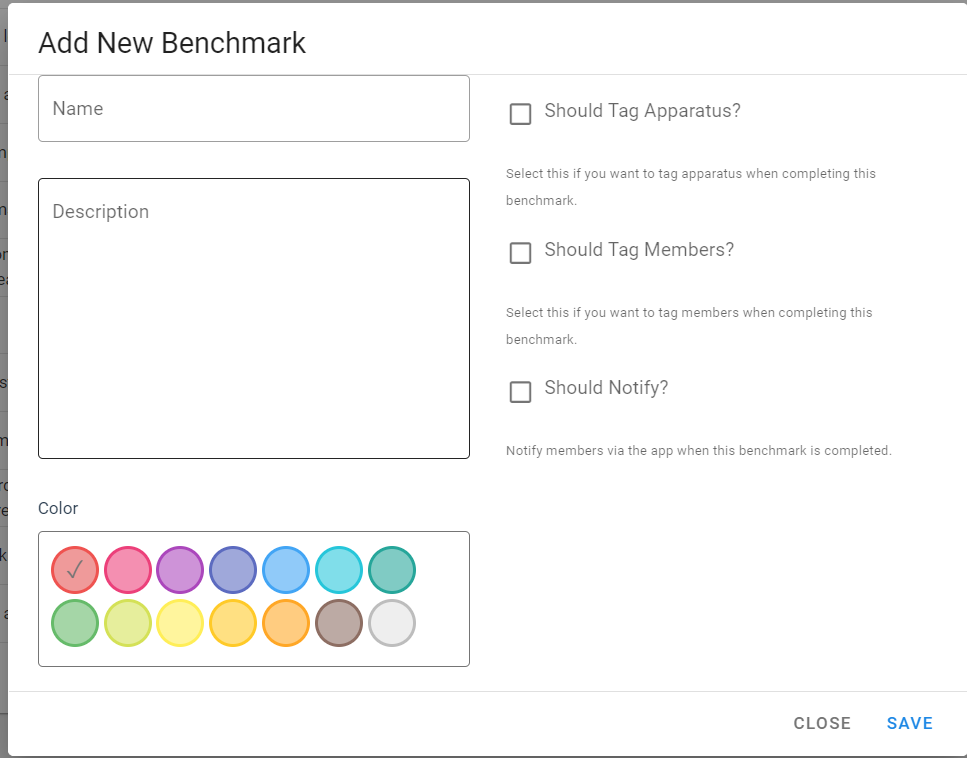
Add a benchmark window
Benchmarks on the FireQ App
To access benchmarks from the app, tap the BENCHMARKS button. Please note that the benchmark button is only available during an active incident.